Since iOS 17 and iPadOS 17, Apple has included Messages-like reactions in FaceTime that lighten up your video with visual effects. But rather than triggering them with words, you can trigger them using physical hand gestures.
When you're on a FaceTime video call on an iPhone running iOS 17 or later, or an iPad running iPadOS 17 or later, you can trigger on-screen effects like hearts, balloons, confetti, fireworks, and more, with the effects flooding the display over the FaceTime window.
You can trigger these layer screen effects with a long press of your picture in FaceTime which brings up a menu of reaction options, or you can go hands-free and trigger the same reactions simply using physical gestures in view of the camera and away from your face.
For example, one thumb up triggers a Like, and two thumbs up are attended by Fireworks. Similarly, one thumb down counts as a dislike, and two thumbs down initiates a rain shower.
FaceTime Reactions on iPhone and iPad
There are eight reactions you can perform on a FaceTime video call. They include:
- Love
- Like
- Dislike
- Balloons
- Stormy rain
- Confetti
- Laser beams
- Fireworks

Gestures to Trigger Reactions
And here are the physical gestures that you can perform to trigger the effects:
- Heart shape using both hands - Heart emoji
- Thumbs up - Thumbs up emoji
- Two thumbs up - Fireworks
- Single thumbs down - Thumbs down emoji
- Two thumbs down - Cloud
- Victory/peace sign with one hand - Balloons
- Victory/peace sign with two hands - Confetti
- "Rock on" sign (🤘) on both hands - Laser
These reactions work by default in FaceTime, and third-party apps can adopt the effects as well.
Disabling FaceTime Reactions
FaceTime reaction effects are great fun when chatting with friends and family, but there may be certain occasions when you don't want to be accidentally triggering reactions, such as when you're on a work call, or during a virtual appointment with your therapist. Fortunately, they aren't hard to disable. Here's how.
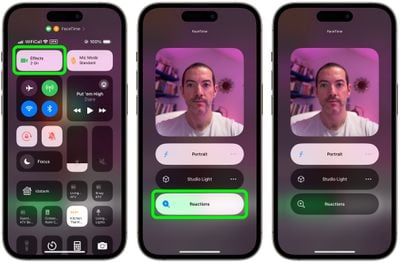
- Open FaceTime on your iPhone or iPad.
- Swipe down from the top-right corner of the screen to invoke Control Center (swipe up from the bottom if you're on a device with Touch ID).
- Tap the Effects button in the top-left corner.
- Tap the Reactions button so that it is no longer illuminated.
- Swipe up twice to return to FaceTime.
FaceTime Reactions on Mac
If you're using a Mac with Apple silicon running macOS Sonoma or later, the FaceTime effects work just the same, and fill your video frame with a 3D effect expressing how you feel.
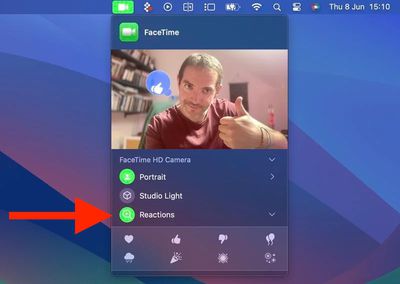
Note that video effects options no longer appear in the Control Center in macOS Sonoma and later versions, and instead have their home in a dedicated green FaceTime menu bar dropdown, which also includes a mini webcam view and clickable buttons to manually trigger Reactions.
To disable reactions on your Mac, simply click the Reactions button in the FaceTime menu bar dropdown so that it is no longer illuminated.