How to Assign Relationships to Contacts for Siri Labels in macOS - MacRumorsOpen MenuShow RoundupsShow Forums menuVisit ForumsOpen Sidebar
Skip to Content

How to Assign Relationships to Contacts for Siri Labels in macOS

by

In macOS, Apple includes a feature that allows you to establish relationships for different contacts, which makes getting in touch with the people close to you much more personable.

macbook pro hey siri
The Contacts app's relationships feature goes hand in hand with Siri, so rather than asking it to "Text Hannah," you can say "Text my sister" and the voice-activated assistant will know that Hannah is your sister.

The following steps show you how to create contact relationships using ‌Siri‌ or by adding them manually in the Contacts app. If you own additional Apple devices, the cool thing is that you only have to do this once and iCloud will sync the changes you make across all of them.

How to Create a Contact Relationship on macOS

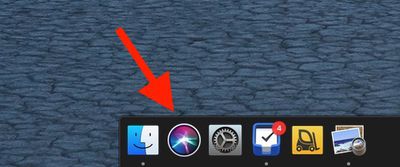
  1. First, activate ‌Siri‌. You can do this on your Mac by clicking the ‌Siri‌ icon in the Dock, clicking the ‌Siri‌ menu bar icon, or using a keyboard shortcut. You can also say simply "Hey ‌Siri‌" handsfree if your Mac supports the function.
    siri in dock

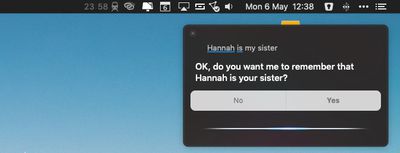
  2. Say the name of the contact and your relationship with them, such as "Hannah is my sister." (If you have two sisters, you can help ‌Siri‌ distinguish them by saying "Hannah is my older sister," for example.)
    establishing relationships with contacts using siri macos

  3. When ‌Siri‌ asks if you want it to remember the relationship, answer "Yes" or click the Yes button in the ‌Siri‌ panel.

Add a Relationship Manually in the Contacts App

If you want, you can manually add relationships in the Contacts app instead. Here's how.

  1. Open the Contacts app.
  2. Select your personal contact card.
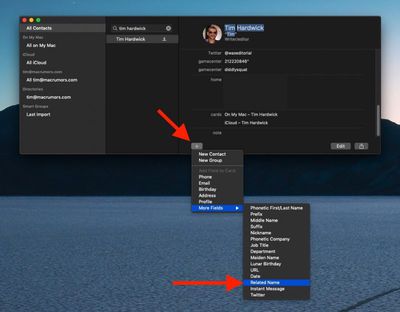
  3. Click the plus (+) button at the bottom left of the card and select More Fields -> Related Name.
  4. Enter the name of the contact you want to establish a relationship with.
    how to establish relationships between contacts siri macos 1

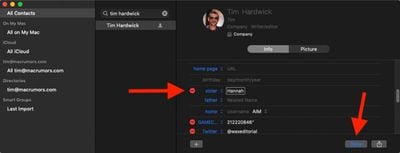
  5. Click the relation field next to the contact's name and select the relationship you want to establish with them. (Select Custom to define a relationship not offered in the list.)
    how to establish relationships between contacts siri macos 2

  6. Click Done.

Remember, you can establish as many relationships as you want using the above methods, so long as the person exists in your contacts.


Popular Stories

iOS 27 on iPhone 17 1

Apple to Unveil iOS 27 in June With These New Features Beyond Siri

Friday April 17, 2026 8:40 am PDT by
Apple is expected to unveil iOS 27 during its WWDC 2026 keynote on June 8, and the update should be released in September. Below, we outline some of the new features that are rumored to be coming with iOS 27, beyond the long-awaited more personalized version of Siri. iOS 27 will reportedly support 5G satellite internet connectivity, although this functionality might be limited to the...
Sad Siri Feature

Siri Engineers Sent to AI Coding Bootcamp as Apple Prepares to Deliver Siri Overhaul

Wednesday April 15, 2026 1:19 pm PDT by
Apple is sending a large portion of its Siri engineers to a multi-week bootcamp to learn to code using AI, reports The Information. Apple's decision to teach its programmers to better use AI for coding comes just two months before Apple is expected to unveil a smarter, more capable version of Siri at WWDC. While employees attend the coding bootcamp, around 60 members of the Siri development...
wwdc 2026 horizontal

WWDC 2026 Graphic Teases Major iOS 27 Feature

Sunday April 19, 2026 3:02 pm PDT by
Apple's WWDC 2026 graphic provides "a glimpse of the revamped Siri interface coming in iOS 27," according to Bloomberg's Mark Gurman. In his Power On newsletter today, Gurman said iOS 27 will include a new Siri interface in the Dynamic Island. When you trigger Siri, he said the Dynamic Island will show a "Search or Ask" prompt, and this will apparently be accompanied by a "glowing cursor"...
Related Apple News: Education | News | Opinion | Reviews | Motoring