

Are you looking to personalize your iPhone's Home Screen beyond the standard layout? Changing app icons is a creative way to customize your device's appearance and make it uniquely yours. Whether you're aiming for a themed aesthetic or just want to refresh the look of your most-used apps, altering app icons on your iPhone is a simple yet effective way to revamp your Home Screen.
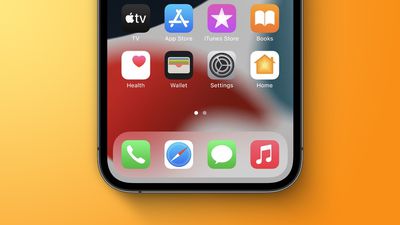
In this article, we'll guide you through the steps to change app icons on your iPhone, offering you the freedom to tailor your device to match your style and preferences. But before you read on, you will need to find or make an image for your new app icon. Fortunately, there are plenty of free icons available for download that you can find with a simple search online.
Once you have your icon image, it's time to make use of it. The following steps explain how you can add a custom icon for any app. The process effectively involves creating a Shortcut to open an app, and then adding an image to that Shortcut so that it appears the way you want it to look on the Home screen.
How to Change an App's Icon With Shortcuts
Shortcuts can be a complex app to use, as it allows users to create multi-step processes to run on their device, but when it comes to changing up app icons, it's a really simple procedure.
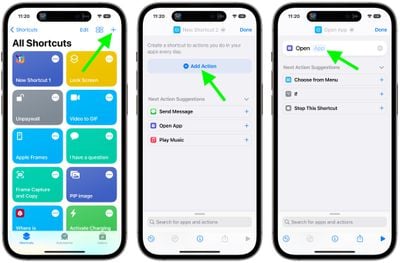
- Launch the Shortcuts app on your iPhone or iPad, then tap the + icon in the top-right corner of the screen.
- Tap Add Action, then use the text field to search for Open App.
- Select Open App.
- Tap App.

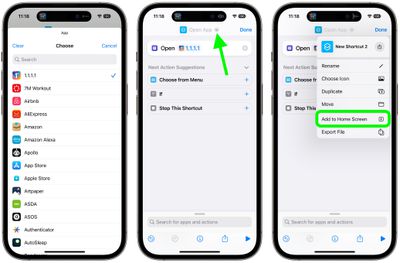
- Use the search field to find the app you want to change the icon of, then select it in the list.
- Tap the down facing chevron at the top next to "Open App".
- Tap Add to Home Screen.
- Tap the placeholder picture icon on the left.
- From the drop-down menu that appears, select Take Photo, Choose Photo, or Choose File, depending on where your replacement app icon image is located.
- Select your replacement image.
- In the text field, rename the app as you want it to appear on the home screen.
- Finally, tap Add.
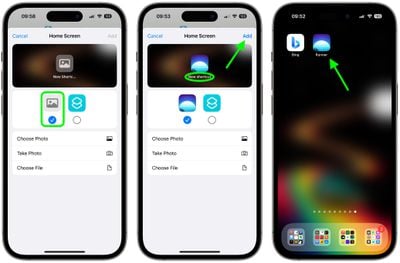
Your Shortcut has now been created. You'll be returned to the home screen where you should see the shortcut in the next available space.
If you already had the app on your home screen, you will now have two different icons for it. In order to keep only your newly-created icon, simply move the old icon to the App Library. To do so, long press on the icon, tap Remove App, then choose Remove From Home Screen. Note: You must not delete the original app.
Since this process can be quite time-consuming, especially when it includes finding or making custom icons, you likely won't want to do it for every app. But if you have the time and patience, what's stopping you?





















Top Rated Comments
I’m very much a “default home screen / wallpaper” guy. I like the way things look as is.
But again, people seem to be loving it so that’s great.
EDIT: Also, this just seems like sooo many steps. 😂
I think it's great to be able to customise the look of your device. Some people are more than just simple users, they are enthusiast and enjoy doing stuff like this. If you want the default look on your device, nothing is stopping you to not change absolutely anything.
1) Apple realizes this is popular and allows it with future updates
2) Apple kills of this feature in shortcuts.