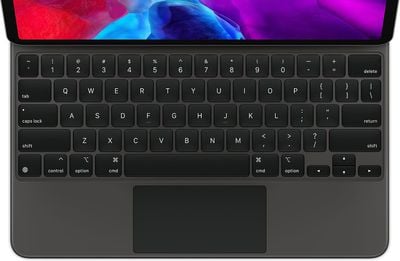
If you've just picked up Apple's new Magic Keyboard for your 2018 or 2020 iPad Pro, here's a list of our favorite tips and tricks that you need to know.
1. Use Your Free USB-C Port
Apple made a neat design decision to integrate a USB-C port into the side of the Magic Keyboard. This lets you power your connected iPad Pro via pass-through charging, leaving your tablet's onboard USB-C port free to plug in other accessories like an SD card reader or a digital camera. You could even charge an Apple Watch from the free USB-C port, or connect your iPad Pro to an external display.
2. Reclaim the Escape Key
The Magic Keyboard for iPad Pro lacks an Escape key, but there are a couple of ways you can get around this. Try hitting the Command key and the period key in combination. If that doesn't work in the context that you need an Escape function, you can use an option in iPadOS 13.4 that lets you remap modifier keys for various actions.
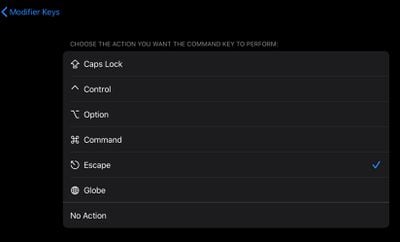
To do so, first make sure your Magic Keyboard is connected to your iPad Pro, then launch the Settings app and select General -> Keyboard -> Hardware Keyboard. Select the Modifier Keys option, then choose the modifier key that you'd like to use as an Escape key. Choose the Escape action on the next screen, and you'll be good to go.
3. Gain Quick Access to the Virtual Keyboard
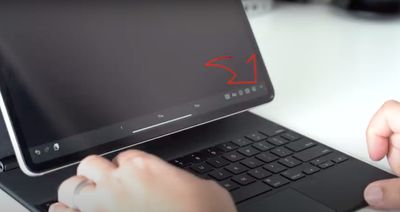
If you need to use the onscreen virtual keyboard to do things like type accented characters or use dictation, tap the down arrow key on your Magic Keyboard, then touch and hold the downward-facing chevron in the bottom-right corner of the iPad's screen. To hide the keyboard again, tap the key in the bottom-right corner of the screen.
4. Control Touchscreen Actions With Keys
If you have difficulty using your iPad Pro's touchscreen, you can replicate many of the functions and actions using the keys on a Magic Keyboard. With the Magic Keyboard connected, launch the Settings app and select Accessibility -> Keyboards -> Full Keyboard Access.
Toggle on the switch next to Full Keyboard Access, and you'll be able to control and customize several keyboard shortcuts to replicate a range of functions, movements, interactions, gestures, and more.
5. Adjust Backlight Brightness
Perhaps the only drawback of the Magic Keyboard is that its layout lacks a row of function keys. That leaves users with no dedicated keys for adjusting some system settings, including keyboard backlight brightness.
The Magic Keyboard actually uses the iPad Pro's sensors to detect the lighting in your environment and will adjust the backlit keys accordingly. But if for some reason you find it too bright or too dim, you can adjust this manually. Granted, it's not as convenient as tapping a key when you want to watch a video with the lights out, but at least it's there.
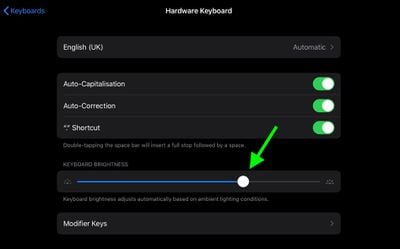
Launch the Settings app and select General -> Keyboard -> Hardware Keyboard, then simply drag the Keyboard Brightness slider to the right or left to make the keys brighter or dimmer.
MacStories' iOS Shortcut magician Federico Viticci has also created a handy shortcut that launches the Hardware Keyboard section of Settings directly. As Viticci suggests, the most convenient way of using it is as a widget on the iPad Home screen.
6. Customize Cursor Behavior
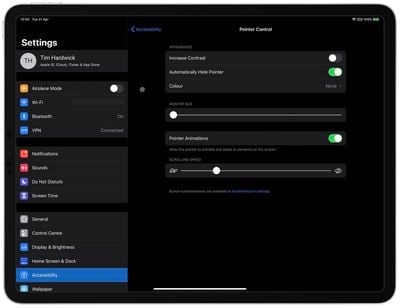
iPadOS includes options that let you customize the appearance and behavior of the trackpad's round cursor. These include increasing the cursor's contrast, changing its color, making it bigger or smaller, changing scrolling speed, and disabling the auto-hide after inactivity. These settings can be found in the Settings app under Accessibility -> Pointer Control.
7. Tap-to-Click and Two-Finger Secondary Click
If you own a Mac, you're likely already familiar with Tap to Click. It lets your trackpad register a tap with a single finger as a virtual click, allowing you to do things like launch apps and open menus without physically clicking the pad.
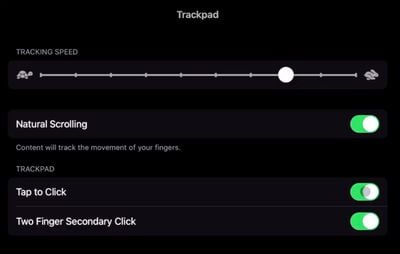
Apple has included the same feature in iPadOS 13.4, so you can use it with your Magic Trackpad. Launch Settings and choose General -> Trackpad, then switch on the toggle next to Tap to Click. Now you can tap the trackpad's surface with one finger to register a click, instead of having the physically depress the trackpad.
You can also make a two-finger tap or click behave as a secondary click (or right-click, if you're used to a two-button mouse). Simply enable the Two Finger Secondary Click toggle in the same Trackpad settings screen above.
8. Trackpad Gestures
As you'd expect, the Magic Keyboard supports the new trackpad gestures in iPadOS 13.4. For example, you can enter the Slide Over multitasking interface by moving the cursor over to the right side of the screen or dragging an app over from the Dock.
You can also use two- and three-finger gestures. On the Home screen, for example, a two-finger swipe downwards on your trackpad will bring up Spotlight search. When you're using Photos, you can pinch in and out to control picture zoom. You can also use two fingers to scroll up or down when navigating a web page in Safari.
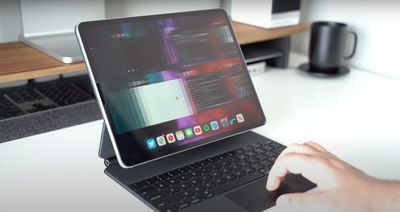
Try swiping downwards with three fingers to be taken back to the Home screen no matter what you're doing on the iPad. Likewise, a three-finger swipe up on the trackpad will open up the iPadOS multitasking interface. And swiping to the left or the right with three fingers will also switch between your open apps.
9. Access Emoji Keyboard
It's easy to access emoji while using the Magic Keyboard. Whenever you're in typing mode, press the globe key in the bottom-corner of the keyboard layout.

As long as you're using only English, the emoji keyboard will appear on the screen. To make it disappear again, simply tap the globe key on the keyboard once again.
10. "Easel Mode" and Other Orientations
Hold your iPad Pro in landscape orientation, prop the bottom side against the ridge below the keys, and rest its top side against the Magic Keyboard cover. Now you have a stable elevated drafting stand or "easel," perfect for drawing.
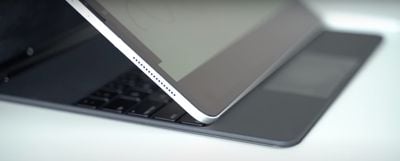
You can also try this stand trick in portrait orientation for some FaceTime, or whenever you want to have the screen closer to you. It's not quite as stable, but it works. (Hat tip to MacRumors forum member GrindedDown for this one.)
Alternatively, with the iPad Pro attached in the normal way, try flipping the Magic Keyboard over backwards, then take your iPhone and slip it in between the keyboard and the top of your iPad, and you'll have another decent angle for drawing.