

Logitech's Circle 2, introduced in June, is the second-generation version of its Circle home security camera. This new version features a redesigned body, wired and wire-free versions, accessories that let it be positioned anywhere, and, through a recent update, HomeKit support.
Circle 2 is meant to be used as a home security device and it's ideal for keeping an eye on your house while you're away from home. It's also great for keeping an eye on pets and children, and even communicating with the two-way microphone. Circle 2 connects to a home WiFi network and offers cloud functionality that lets you view video anywhere.
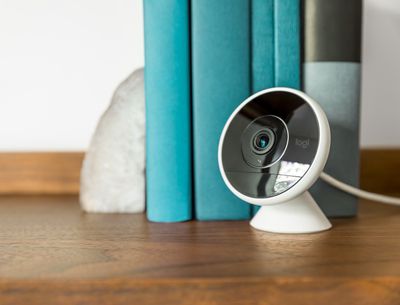
I've been using a Logitech Circle camera for two years now sans HomeKit functionality, so I was eager to check out the HomeKit version. This is only the second HomeKit-compatible camera available on the market, and with the new design, the Logi Circle app, and cloud upload ability, the Circle 2 easily beats out the D-Link Omna as the best HomeKit camera you can buy at the moment.
Though Logitech offers both wired and wire-free versions of the Circle 2, HomeKit only works with the wired version because Apple requires an always-on camera connection, and that's not how the wire-free Circle 2 works.
Design and Features
The wired version of the Circle 2 consists of a small palm-sized camera module that attaches to a base with a pivoting neck, allowing the camera to be positioned and rotated into an ideal angle to work with any room setup. The base can be attached to a wall with a wall mount, and the camera module itself is detachable from the base because it can connect to other accessories like a plug or window mount.
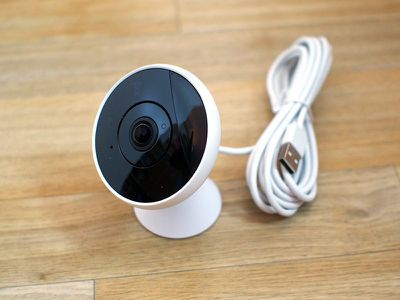
Circle 2 has a white shell around it, and the camera base is also white. It's a simple, attractive design that melds into the decor around it. There's no mistaking this is a camera, though. It has a wide camera lens and an LED light that comes on when it's activated, but that can be turned off for a slightly more discreet look. At the back, there's a 10-ft power cord that needs to be plugged into the wall.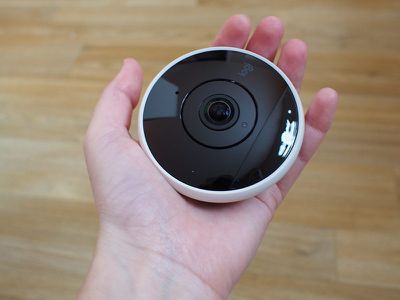
Since it uses a wide angle lens, the camera works best attached to a wall or placed right at the edge of a shelf or other flat surface. Because of the ball joint in the mount, it can be angled in just the right way to get an ideal view of the room.
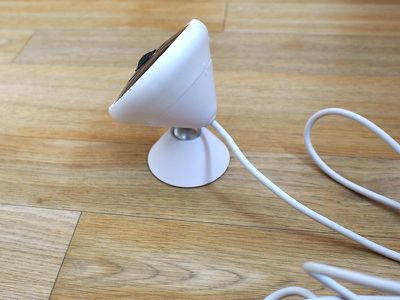
Circle 2 is IP65 weatherproof, so it can be used indoors and outdoors. Logitech says it will stand up to rain, snow, cold, and heat. Mine withstood some light water exposure, and while I kept it indoors, weatherproofing is a great addition over the first version of the Circle. You will need a strong WiFi connection to use it outside, though, which can be difficult to get outdoors.
The D-Link Omna, the other HomeKit camera on the market, is not weatherproof and it is not as easy to position and move around with no malleable joint for adjustments, giving Circle 2 the clear edge.
Circle 2 features a camera with a 180-degree field of view, which is an angle wide enough to take in most of a room and wider than the field of view of the original Circle. My office is fairly large and the Circle 2 can capture almost all of it from end to end. Since it is a wide angle camera, there is clear distortion at the edges of the image.
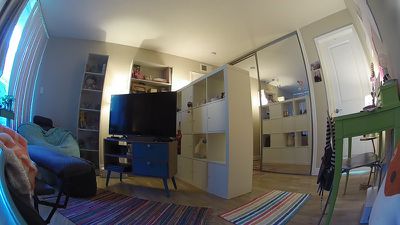
Circle 2 captures 1080p video that's crisp and clear, even in situations where the lighting is not ideal. The bump in quality is most noticeable in lower light and in situations where I use the built-in zooming feature. To save bandwidth, there are also settings for 720p and 360p video.
At night, when the lights are off, the Circle 2 switches over to an infrared night vision mode that's able to capture movement from 15 feet away. Night vision mode is clear enough to show everything going on in my office, and it comes on reliably as soon as the lights go off.
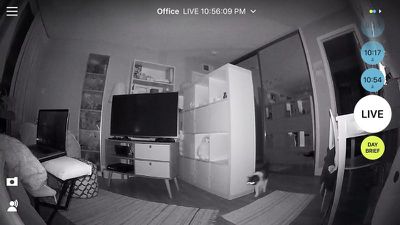
Though you can zoom in on the video feed from the Circle 2 and manually adjust the placement of the camera, there are no controls for adjusting or rotating the view remotely as the camera is static.
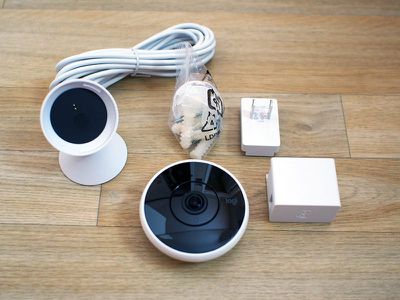
There's a built-in speaker and microphone in the Circle 2 to enable a two-way talking feature through the Logi Circle app. The speaker is loud and it's easy enough to understand someone on the other side of the camera through the phone, but it's not super clear. Because there's a microphone, video recordings also include sound.
Setup
Since the Circle 2 went on sale in June but HomeKit functionality wasn't added until September, existing Circle 2 users will need to go to a little extra trouble to get HomeKit working.
New Circle 2 units should come with a little card that has a HomeKit code on it, but existing models and the test unit I received don't have an easily accessible HomeKit code. To get to the code, the camera needs to be separated from its base and the protective white skin needs to come off so the HomeKit activation code assigned to the device can be located.
The eight digit code is engraved into the back of the camera in tiny numbers and letters, and this is the eight digit code that needs to be entered to pair the device with HomeKit.
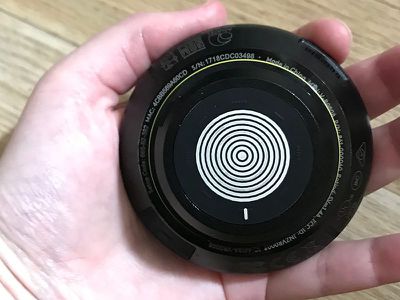
Setting up the HomeKit functionality is a little odd because first you need to add the camera to the accompanying Logi Circle app by following the included directions, add it to your WiFi network, and then create a Circle account to access your cloud camera footage.
After the Logi Circle app is set up, the camera also needs to be added to HomeKit using the add accessory feature in the Home app. If there's no included HomeKit insert to scan, the Circle 2 can be added to HomeKit using the aforementioned eight digit code. Setting up the Circle 2 isn't the most straightforward process, but it still takes just a few minutes to get going.
App and HomeKit Integration
Logi Circle App
Circle 2 uses cloud storage and offers no local storage option, so all video needs to be viewed through the accompanying Logi Circle app. Circle 2 records snippets of video whenever motion is detected, with no always-on recording option available. The exception is live view - you can open the app at any time to see what's going on in your home.
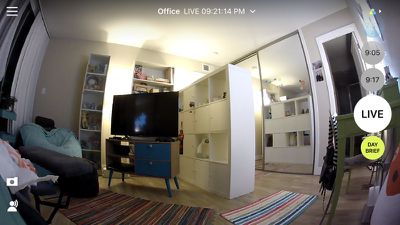
The camera is decent at continuing a recording for as long as it detects movement, but since it's motion based, there are times where the recording cuts off too early or starts recording a bit late. This has never been a serious problem for me because it generally captures most of what I need to see in a given snippet, but some users may prefer always-on recording so nothing is ever lost.
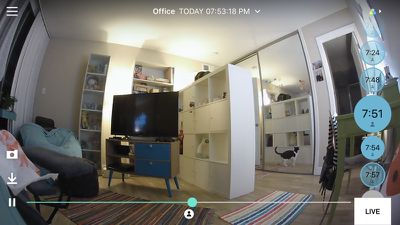
With camera activation tied to motion, the app is organized into a series of video snippets that are time stamped. The app generally opens to a current live view, but you can scroll up to see earlier recordings. With the free plan, the Circle 2 stores 24 hours of motion-based footage.
Recordings are time based and are gray for times when minor movement is detected or blue when high activity is detected. Using the Event Filter at the right hand side of the app, recordings can be filtered by day or high activity level, but there are no more granular options for finding footage from a specific time and date.
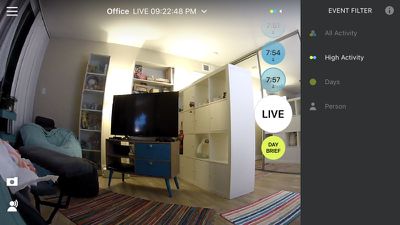
The Logi Circle app is always in landscape orientation, so you'll need to hold your iPhone in landscape mode when using it. The app also always displays the full zoomed out room view, but with pinch gestures, you can zoom in up to 8x. There's no native zoom built into the camera, so this is digital zoom, and the quality isn't great. At 1x to 3x zoom, the picture remains fairly clear, but definition is lost at 8x.
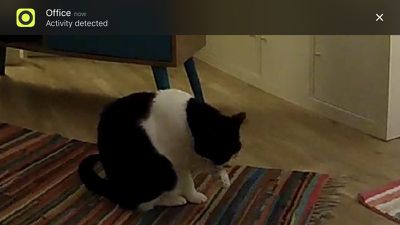
On the main app screen, there are options to take a photo or use the microphone feature in the app to speak through the Circle 2's speaker. There's also a "Day Brief" option which is a neat little feature that creates a quick video of all of the motion that was detected over the course of the last 24 hours (time period is customizable with premium subscription).
In the Settings section of the app, accessible through the hamburger button on the left, there are options to turn the camera off, turn on smart alerts for notifications when movement is detected, and activate a privacy mode, which prevents the Circle 2 from recording footage or sending alerts, though streaming continues.
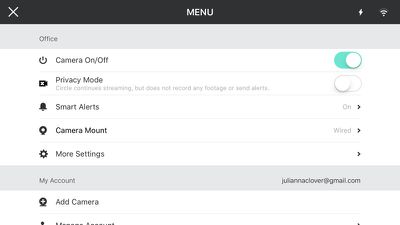
Notifications from the Logi Circle app can be customized based on activity level and limited to when you're away from home with Smart Location, and you're also able to select how often you want to receive notifications when movement is detected. There is a setting to customize motion zones for notification purposes, but it's limited to premium users.
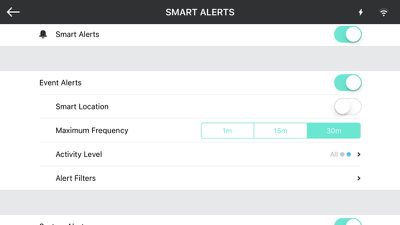
Circle 2's motion detection and notification features are somewhat lacking because of the limited amount of customization. The app does not offer a way to schedule alerts for specific times of the day, and there are no alerts for audio activity. I've continually found the alert settings to be difficult to use, confusing, and not robust enough.
The Settings section of the app also offers options for adjusting the field of view, changing the resolution, adjusting the microphone sound level, turning off the speaker, or turning off the LED that indicates when the Circle 2 video feed is being viewed through the app.
The app supports multiple cameras, so if you have more than one, you can switch between them using the menu option at the top of the app. All settings will need to be customized individually for each camera.
HomeKit
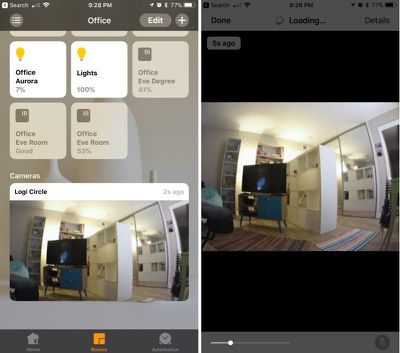
With HomeKit integration, the video feed from the Circle 2 is available right within the Home app on all of your devices, including Apple Watch. You can ask Siri to do things like "Open the camera in the office" or "Show me the camera in the office" to open it up. You can't view recordings from the Logi Circle app in HomeKit -- it's live feed only.
When away from home, to view the Circle 2 feed in the Home app, you'll need an Apple TV or iPad that serves as a home hub for remote access. You'll also only be able to watch the HomeKit feed from one device at a time.
The motion detection features of the Circle 2 can be used in Automations in the Home app, but the functionality is fairly limited. You can, for example, have a light turn on or a door lock/unlock when motion is detected, but that's about it. Your automations can be customized by time and location, but there are no options for motion sensitivity or motion zones.
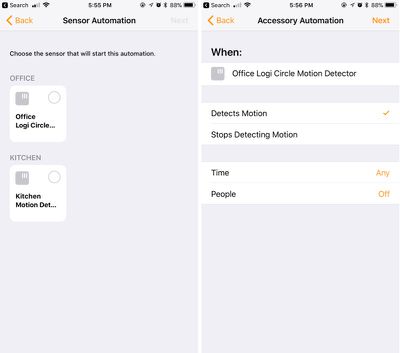
So in a nutshell, I can set the Circle 2 to do something like turn on the lights when motion is detected while I am at home at night, but I haven't found any of the motion detection options to be particularly useful in my HomeKit setup. The most useful application may be doing something like turning on the lights when movement is detected to deter thieves when you're away from home.
In the Home app, beyond viewing the camera feed, you can use the microphone and speaker for conversations and mute the sound, and you can enable HomeKit notifications. Notification settings are somewhat buried, and can be accessed by a 3D press on the Logi Circle Motion Detector icon in the Home app.
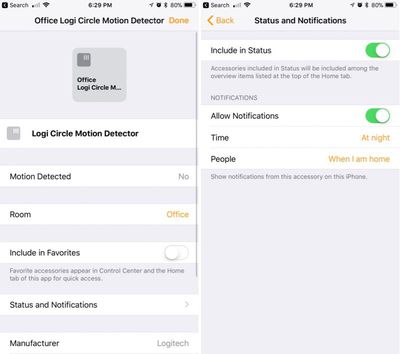
You can set the Circle 2 to send a notification when motion is detected, and the notifications can be set to display at a specific time or by location, so you can do things like suppress notifications when you're home or in the mornings.
HomeKit notifications are distinct from notifications that are sent from the Logi Circle app, which is somewhat confusing. If you have both sets of notifications enabled, you'll get two notifications for every motion alert. HomeKit notifications have an edge over Logi Circle notifications, though, as they are rich notifications that include an image snapshot.
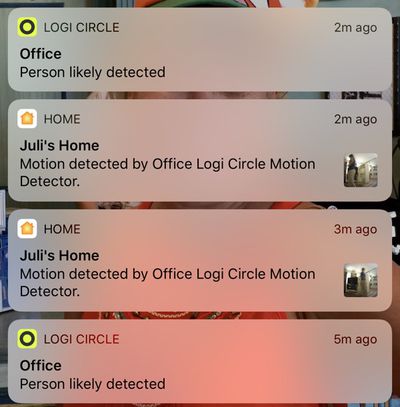
Two types of notifications each with different options that don't combine is a hassle to deal with, so it's best to pick just one. With the Circle app you can choose notification frequency, activity level, and set motion zones (premium) but there are no time-based filters. With HomeKit notifications, you can limit notifications to set times, but can't customize frequency, activity level, or activity type.
Paid Service
Logitech offers a premium subscription service called Circle Safe, which is priced at $3.99 or $9.99 per month. Circle Safe gives you 14 or 31 days of stored footage, up from 24 hours with the free plan, and it includes several features that are not otherwise available.
Circle Safe Basic, which offers 14 days of storage, is priced at $3.99 per camera per month. Circle Safe Premium, which offers 31 days of storage, is priced at $9.99 per camera per month, which is expensive if you've got more than one Circle camera.
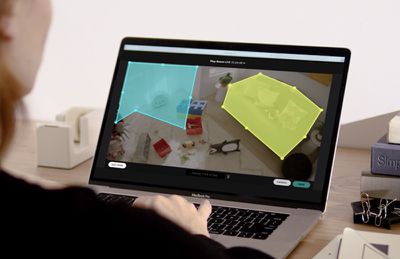
With the Circle Safe Premium feature, you can also set motion detection zones and use the Circle 2's people recognition feature to customize the motion detection alerts you receive. With people recognition, you can get an alert only when a person is detected, and with motion zones, you can set the camera to only send a notification when a specific area in the camera's field of view is triggered, like a front door vs. the entire entryway.
Premium subscribers can also customize the timespan included in the Day Brief, while free members and Basic subscribers see 24 hours, and there's an option to filter footage to see only snippets where people were detected.
I've never subscribed to Circle Safe and I don't think it's necessary to get what you want out of the camera, but it's a must if you want to save footage in the Logi Circle app for more than a day.
Bottom Line
If you want a camera that's compatible with HomeKit, the Circle 2 is the camera to get. It's one of the only HomeKit-equipped cameras on the market right now, and it's better than the competition.
Even without taking into account HomeKit, the Circle 2 is a good home camera. When I reviewed the original version, I didn't think it measured up to some of the other home security cameras on the market, but Logitech has made a lot of feature improvements since then. I do wish local storage was an option, there were better tools for customizing recording times, and that motion detection zones weren't limited to paid users, but even without those features, Circle 2 has solid features to offer.
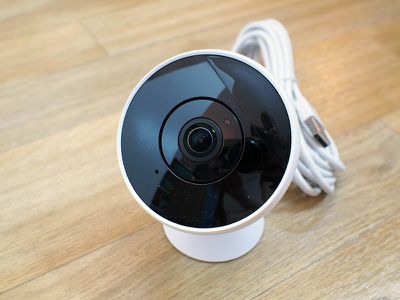
With weatherproofing and the new enclosures, Circle 2 can be placed almost anywhere that needs monitoring and the free service Logitech offers is enough to operate the camera and record data without feeling like an overwhelming number of features are restricted.
There are still significant improvements that could be made to the Circle app, like better organization for viewing older video snippets, additional alert types, and more options for automating alert times, and it doesn't measure up to some of the more robust dedicated home security systems like Arlo, but it's easy to use, flexible, and competitively priced.
I wouldn't adopt Circle 2 as a whole home security system given the pricing of the premium plan, but it works well in a single room and is useful for keeping an eye on pets, babies, kids, and other people who might be in your home.
Pros:
- 1080p video recording
- Two-way microphone/speaker
- Cloud storage
- Adjustable body
- Night mode
- HomeKit
- Multiple mounts
Cons:
- No local storage
- Premium subscription is expensive at $9.99/month per camera
- Features limited without subscription
- No always-on recording option
- Gaps in recording
- Notification system is confusing
How to Buy
The Logitech Circle 2 wired camera with HomeKit support can be purchased from the Logitech website for $179.99.
Note: Logitech provided MacRumors with a Circle 2 for the purpose of this review. No other compensation was received.



















Top Rated Comments
SETTINGS - MORE SETTINGS - MICROPHONE - OFF (other options are MID and HIGH)
1) Cloud storage (which, for some, the on-board storage of the D-Link might be considered an advantage)
2) Improved mounting flexibility and weatherproofing
Anything else?