In macOS Ventura, Apple has added some major updates to the Messages app, introducing some features that rival third-party messaging platforms have had for years. One of these changes is the ability to unsend sent iMessages. Keep reading to learn how it works.
Have you ever sent a text message only to immediately wish that you hadn't? In previous versions of macOS, if you sent a message over Apple's iMessage service, there was nothing you could do in such an undesirable situation, but in macOS Ventura, it's possible to unsend an iMessage, or at least you can up to a point.
You see, there are some limitations to the new Unsend feature that are worth taking into consideration. First, if you use the undo send feature on a message sent to someone using a Mac running macOS Monterey or earlier (or an iPhone running iOS 15 or earlier) it will not work and the message will not be unsent.
In such cases, the person on the other end will not see that you unsent it, even though it disappears from your Mac. If this happens, you'll see a message that says "You unsent a message. [Person] may still be able to see your message on devices running older versions of macOS."
Second, you can only opt to unsend an iMessage for up to two minutes after it's been delivered. If more than two minutes have elapsed since you sent the message, you can no longer unsend it (although you may still be able to edit the iMessage).
With the above caveats in mind, here's how you unsend a sent iMessage on a Mac running macOS Ventura. (The equivalent steps are similar if you're using an iPhone or iPad running iOS 16 or iPadOS 16.)
- In the Messages app, make sure the conversation thread containing the sent message that you want to unsend is selected in the interface.
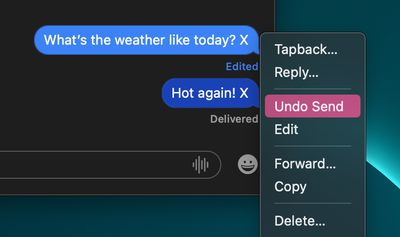
- Right-click (or Ctrl-click) the sent message that you want to retrieve.
- Select Undo Send in the contextual menu. (If you don't see the option, at least two minutes have elapsed and you can no longer unsend it.)

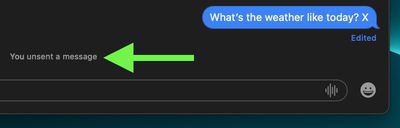
- The message will disappear with a pop, to be replaced by the text "You unsent a message."
That's all there is to it. Did you know that you can also edit sent iMessages in macOS? Check out our dedicated how-to to learn how.