This article shows you how to share files between your Mac and your iPhone and iPad using the new route in Catalina.

With the release of macOS Catalina, Apple said goodbye to iTunes and broke it up into separate Mac apps for Music, Podcasts, and Apple TV, meaning the functions for managing a connected ‌iPhone‌, ‌iPad‌ or iPod touch needed a new home.

macoscatalinafinder
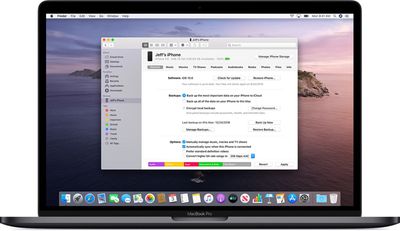
It's not immediately obvious, but Apple chose to integrate these device functions into the Finder, so now you can choose transfer files, manage iCloud and local backups, and restore or update your iOS device without even opening another application on your Mac.

How to Copy Files From Mac to iPhone and iPad

  1. Plug your ‌iPhone‌, ‌iPad‌, or iPod touch into your Mac using the supplied cable. If you have a USB-C Mac, you may need an adapter.
  2. Open a Finder window by clicking the Finder icon in the Dock.
  3. Click your iOS device's name in the sidebar.
    finder

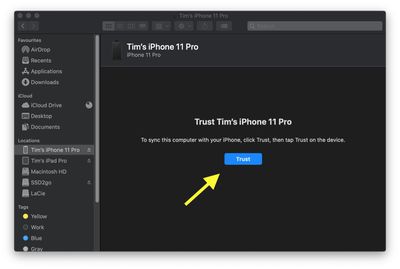
  4. If this is the first time connecting your device to your Mac, click Trust in the Finder window.
    finder

  5. Tap Trust on your device when prompted, then enter your passcode to confirm.
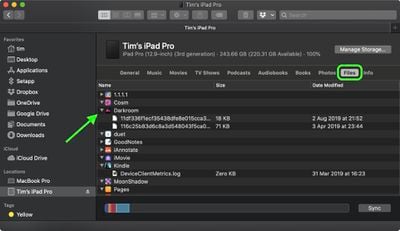
  6. Click the Files tab to see a list of apps that can share files. If you don't see a Files section, your device doesn't have any apps that can share files.
    finder

  7. Open another Finder window (Command-N) and select the files on your Mac that you want to copy to your ‌iPhone‌, ‌iPad‌, or iPod touch. Only select files that work with an app on your iOS device. (Check the app’s user guide to see which ones work.)
  8. Drag the file(s) to the compatible app on your iOS device.
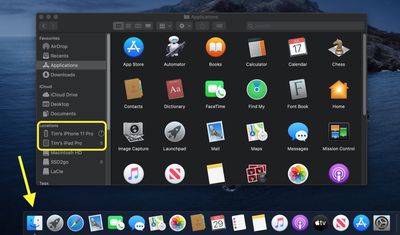
Finder will automatically copy them across to your iOS device. Depending on the size of the file(s), you may have to wait a while for the transfer to complete.

How to Copy Files From iPhone and iPad to Mac

  1. Plug your ‌iPhone‌, ‌iPad‌, or iPod touch into your Mac using the supplied cable.
  2. Open a Finder window by clicking the Finder icon in the Dock.
  3. Click your iOS device's name in the sidebar.
    finder

  4. If this is the first time connecting your device to your Mac, click Trust in the Finder window.
    finder

  5. Tap Trust on your device when prompted, then enter your passcode to confirm.
  6. Click the Files tab to see a list of apps that can share files. If you don't see a Files section, your device doesn't have any apps that can share files.
    finder

  7. Click the triangle next to an app to see the files that you can share.
  8. Open another Finder window (Command-N) and navigate to the location on your Mac where you'd like to copy the files on your iOS device to.
    finder

  9. Select the files on your iOS device that you want to copy, then drag the file(s) to the open location on your Mac in the other Finder window.
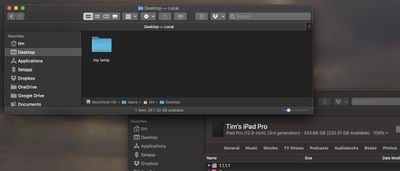
Finder will automatically copy the files to your Mac. Depending on the size of the file(s), you may have to wait a while for the transfer to complete.

How to Delete files on your iPhone and iPad.

  1. Plug your ‌iPhone‌, ‌iPad‌, or iPod touch into your Mac using the supplied cable.
  2. Open a Finder window by clicking the Finder icon in the Dock.
  3. Click your iOS device's name in the sidebar.
    finder

  4. Click the Files tab to see a list of apps that contain files. If you don't see a Files section, your device doesn't have any apps that can share files.
    finder

  5. Click the triangle next to an app to see the files it contains.
  6. Select the file that you want to delete, then right-click (Ctrl-cick) it and select Delete.
  7. Click Delete to confirm.

There are often other ways to delete files from an app. See the app's user guide to find out more.


Popular Stories

iOS 26

iOS 26.4 and iOS 27 Features Revealed in New Leak

Friday December 12, 2025 10:56 am PST by
Macworld's Filipe Espósito today revealed a handful of features that Apple is allegedly planning for iOS 26.4, iOS 27, and even iOS 28. The report said the features are referenced within the code for a leaked internal build of iOS 26 that is not meant to be seen by the public. However, it appears that Espósito and/or his sources managed to gain access to it, providing us with a sneak peek...
iOS 26

iOS 26.2 Coming Soon With These 8 New Features on Your iPhone

Thursday December 11, 2025 8:49 am PST by
Apple seeded the second iOS 26.2 Release Candidate to developers earlier this week, meaning the update will be released to the general public very soon. Apple confirmed iOS 26.2 would be released in December, but it did not provide a specific date. We expect the update to be released by early next week. iOS 26.2 includes a handful of new features and changes on the iPhone, such as a new...
iOS 26

Apple Releases iOS 26.2 With Alarms for Reminders, Lock Screen Changes, Enhanced Safety Alerts and More

Friday December 12, 2025 10:10 am PST by
Apple today released iOS 26.2, the second major update to the iOS 26 operating system that came out in September, iOS 26.2 comes a little over a month after iOS 26.1 launched. ‌iOS 26‌.2 is compatible with the ‌iPhone‌ 11 series and later, as well as the second-generation ‌iPhone‌ SE. The new software can be downloaded on eligible iPhones over-the-air by going to Settings >...
AirPods Pro Firmware Feature

Apple Releases New Firmware for AirPods Pro 2 and AirPods Pro 3

Thursday December 11, 2025 11:28 am PST by
Apple today released new firmware designed for the AirPods Pro 3 and the prior-generation AirPods Pro 2. The AirPods Pro 3 firmware is 8B30, up from 8B25, while the AirPods Pro 2 firmware is 8B28, up from 8B21. There's no word on what's include in the updated firmware, but the AirPods Pro 2 and AirPods Pro 3 are getting expanded support for Live Translation in the European Union in iOS...
macOS Tahoe 26 Thumb

Apple Releases macOS Tahoe 26.2 With Edge Light

Friday December 12, 2025 10:08 am PST by
Apple today released macOS Tahoe 26.2, the second major update to the macOS Tahoe operating system that came out in September. macOS Tahoe 26.2 comes five weeks after Apple released macOS Tahoe 26.1. Mac users can download the macOS Tahoe update by using the Software Update section of System Settings. macOS Tahoe 26.2 includes Edge Light, a feature that illuminates your face with soft...
AirTag 2 Mock Feature

Apple AirTag 2: Four New Features Found in iOS 26 Code

Thursday December 11, 2025 10:31 am PST by
The AirTag 2 will include a handful of new features that will improve tracking capabilities, according to a new report from Macworld. The site says that it was able to access an internal build of iOS 26, which includes references to multiple unreleased products. Here's what's supposedly coming: An improved pairing process, though no details were provided. AirTag pairing is already...
ipados 26 1 slide over

Apple Releases iPadOS 26.2 With Multitasking Improvements

Friday December 12, 2025 10:09 am PST by
Apple today released iPadOS 26.2, the second major update to the iPadOS 26 operating system released in September. iPadOS 26.2 comes a month after iPadOS 26.1. The new software can be downloaded on eligible iPads over-the-air by going to Settings > General > Software Update. iPadOS 26.2 continues with the multitasking improvements that were added with iPadOS 26.1. You can now drag and...
bug security vulnerability issue fix larry

Update Now: iOS 26.2 Fixes 20+ Security Vulnerabilities

Friday December 12, 2025 11:11 am PST by
Apple today released iOS 26.2, iPadOS 26.2, and macOS 26.2, all of which introduce new features, bug fixes, and security improvements. Apple says that the updates address over 20 vulnerabilities, including two bugs that are known to have been actively exploited. There are a pair of WebKit vulnerabilities that could allow maliciously crafted web content to execute code or cause memory...