Knowing how to take a screenshot on your iPad can come in handy for all sorts of reasons. Whether you want to capture a snapshot of video, or give someone a preview of a project you're working on, taking a picture of your screen is extremely easy to do.
- How to Take a Screenshot on iPad, iPad mini, iPad Air, and iPad Pro (2017)
- How to Take a Screenshot on 2018 iPad Pro models (third-generation)
- Where are Screenshots Saved?
How to Take a Screenshot on iPad, iPad mini, iPad Air, and iPad Pro (2017 models and earlier)
The following method works for all iPads with a Home button, so that's iPad, iPad mini, iPad Air, and iPad Pro (2017 models and earlier). If your iPad doesn't have a Home button (if it's a 2018 iPad Pro, for example) the way to take screenshots is a little different – click here to learn how.
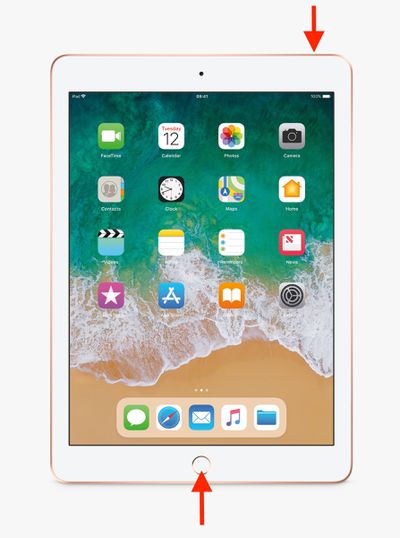
- Press the Top button and the Home button at the same time.
- Quickly release both buttons.
- A preview of the screenshot will pop up in the lower left of the display. Tap it to open up the Instant Markup interface, or let it disappear (this takes about five seconds) and it will be saved as-is.
The Instant Markup interface lets you add text, crop, highlight specific areas in a screenshot. To learn more about quickly editing screenshots using Instant Markup, click here.
How to Take a Screenshot on 2018 iPad Pro Models
In 2018, Apple launched third-generation iPad Pro models, available in 11 and 12.9-inches, which are the first iPads not to feature a Home button. Taking a screenshot on these iPads is just as easy as taking one on an iPhone without a Home button, but the gesture is a bit different.
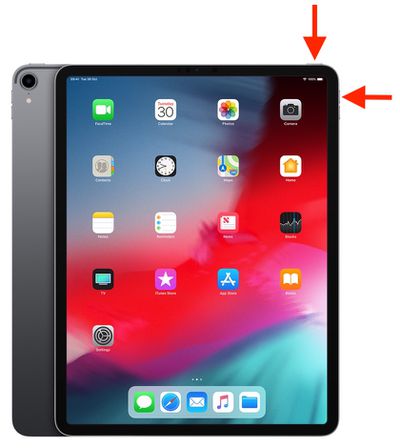
- Press the Power button on the top of the device and the Volume up button located on the right of the device at the same time.
- Quickly release both buttons.
- A preview of the screenshot will pop up in the lower left of the display. Tap it to open up the Instant Markup interface, or let it disappear (this takes about five seconds) and it will be saved as-is.
The Instant Markup interface lets you add text, crop, highlight specific areas in a screenshot. To learn more about quickly editing screenshots using Instant Markup, click here.
Where Are Screenshots Saved?
When you take a screenshot on your iOS device, it's automatically saved to your Photo library. The Photos app also maintains a Screenshots folder where all the pictures you've taken can be conveniently accessed.