How to Customize Your HomeKit Setup With Favorites - MacRumorsOpen MenuShow RoundupsShow Forums menuVisit ForumsOpen Sidebar
Skip to Content

How to Customize Your HomeKit Setup With Favorites

by

In Apple's Home app, you can set particular HomeKit scenes and accessories as "Favorites" so that you can access them quickly and easily from the app's Home tab and in Control Center on your iPhone or iPad.
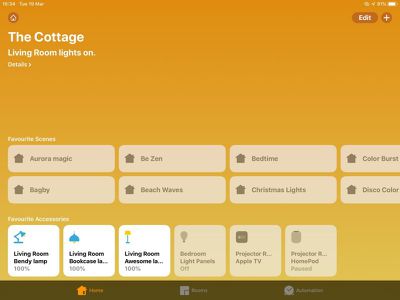
how to set homekit favorites
Once you've added some ‌HomeKit‌ accessories and/or created some scenes, follow the steps below to start adding them to your Favorites. The second set of steps shows you how to access them in Control Center.

How to Set HomeKit Favorites

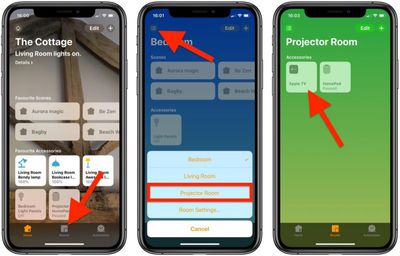
  1. Launch the Home app on your iPhone or ‌iPad‌.
  2. Tap the Rooms tab at the bottom of the screen.
    how to set homekit favorites 1

  3. Tap the Room selector icon at the top left of the screen.
  4. Using the pop-up menu, select the room where the device you want to "Favorite" is located.
  5. Press and hold on the device in question.
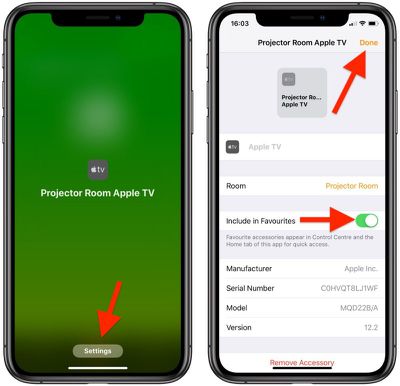
  6. Tap Settings at the bottom of the screen.
    how to set homekit favorites 2

  7. Next to Include in Favorites, toggle the switch to the green ON position.
  8. Tap Done.

How to Access Favorites in Control Center

Note: You may need to add the Home icon to Control Center if it isn't already there. To learn how, see our separate guide on customizing the Control Center.

  1. To open Control Center on an ‌iPad‌ with a Home button, double-tap the Home button; on iPhone 8 or earlier, swipe up from the bottom of the screen; and on a 2018 iPad Pro or iPhone X/XR/XS/XS Max, swipe down from the upper right of the screen.
    how to set homekit favorites 3

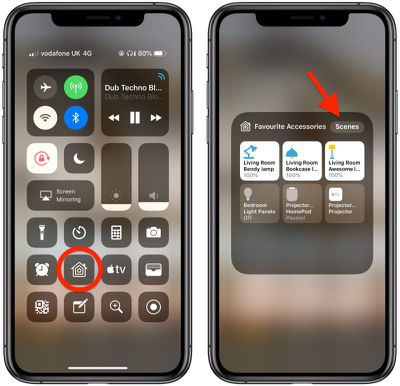
  2. Press and hold the Home icon.
  3. You can switch between Favorite Accessories and Favorite Scenes using the relevant button at the top of this panel.
When you have a lot of ‌HomeKit‌ products, the built-in Favorites option is a great way to put the devices that you need to access most right on the main page of the Home app, such as lights and smart plugs. Devices like motion sensors that don't need frequent access can be removed from favorites to prevent clutter, but all of your devices can be seen when browsing via the "Rooms" tab at the bottom of the Home app.


Popular Stories

iPhone 18 Pro Deep Red Feature

iPhone 18 Pro Launching Later This Year With These 12 New Features

Wednesday March 18, 2026 7:39 am PDT by
While the iPhone 18 Pro and iPhone 18 Pro Max are not expected to launch for another six months or so, there are already plenty of rumors about the devices. It was initially reported that the iPhone 18 Pro models would have fully under-screen Face ID, with only a front camera visible in the top-left corner of the screen. However, the latest rumors indicate that only one Face ID component...
ios 26 4 yellow

Here Are Apple's Release Notes for iOS 26.4

Wednesday March 18, 2026 11:56 am PDT by
Apple provided developers and public beta testers with the release candidate versions of iOS 26.4 and iPadOS 26.4, which means we're going to see a public launch as soon as next week. The RC versions of the software include Apple's official release notes, giving us final details on what's included in the update. Apple Music - Playlist Playground (beta) generates a playlist from your...
Apple Logo Sketch Feature

Apple Has Now Unveiled Eight New Products This Month

Tuesday March 17, 2026 9:25 am PDT by
Apple has unveiled a whopping eight new products so far this March, including an iPhone 17e, iPad Air models with the M4 chip, MacBook Air models with the M5 chip, MacBook Pro models with M5 Pro and M5 Max chips, the all-new MacBook Neo, an updated Studio Display, a higher-end Studio Display XDR, and now the AirPods Max 2 this week. iPhone 17e features the same overall design as the iPhone...
Related Apple News: Entertainment | Local News | Mac | Travel | South Africa