Apple's Messages app for iPhone allows you to record and send audio messages. Keep reading to learn how it works.
Sometimes it can be hard to capture feeling or emotion in a text message. If you have something heartfelt to communicate to someone, you can always call them, but an audio message can be less intrusive and is much more convenient (and quicker) to send or listen to.
That's why Apple includes the ability to send and receive voice messages in the Messages app on iPhone and iPad. The following steps show you how to record and send audio messages, as well as how to listen to received audio messages and reply to them.
How to Record and Send an Audio Message
Note that for audio recording to be available, both you and your recipients must be signed into iMessage.
- In the Messages app, tap into a conversation thread.
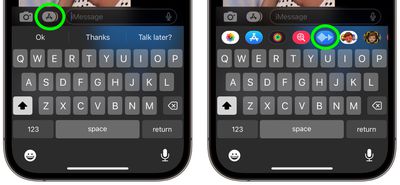
- Tap the Apps icon (the "A" symbol next to the camera icon) to reveal the app icons below the text input field.
- Tap the blue waveform icon in the row of apps.

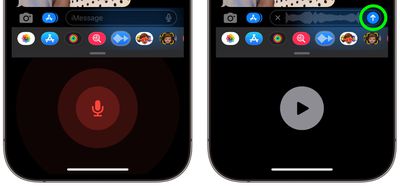
- Tap the red microphone button to begin recording your audio message, then tap it again to stop recording. Alternatively, press and hold the mic button while you record your message, then release to send.
- If you tapped to record, tap the play button to review your message, then tap the blue arrow button to send the recording, or tap X to cancel.
Note that you can tap Keep to save an incoming or outgoing audio message on your device. If you don't tap Keep, the recording is deleted from the conversation (on your device only) for two minutes after you send or listen to it. Recipients can play your recording any time after they receive it, and then they have two minutes to save the message by tapping Keep.
Tip: If you always want to keep audio messages, go to Settings -> Messages, tap Expire under "Audio Messages," then tap Never.
How to Listen or Reply to a Recorded Audio Message
If you receive an audio message, simply raise your iPhone to your ear to listen to it. You can also raise your iPhone to send an audio reply.
To reply with an audio message, lower your iPhone, then raise it to your ear again. You should hear a tone, after which you can record your response. To send the audio message, lower your iPhone, then tap the blue arrow icon.