With the release of the iPhone 12 series, Apple has expanded its Night mode feature that debuted in last year's iPhone 11 to the TrueDepth and Ultra Wide cameras, and introduced new options for shooting brighter pictures in low-light conditions, such as the ability to use Night mode in selfies and portrait shots.
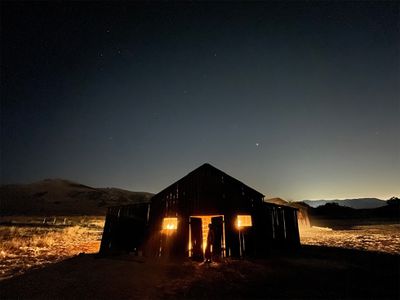
Thanks to Time-Lapse, you can also use Night mode in low light conditions to capture videos with longer interval frames. Night mode Time-Lapse delivers longer exposure times for sharper videos, better light trails, and smoother exposure in low-light scenarios when used with a tripod.
How to Capture Night Mode Time-Lapse on iPhone 12
When shooting Time-Lapse, Night mode activates automatically – all you need to do is find the right low-light conditions.
- Launch the Camera app on your iPhone 12 mini, iPhone 12, iPhone 12 Pro, or iPhone 12 Pro Max.
- Under the viewfinder, swipe all the way to the left until you come to Time-Lapse.

- To adjust the exposure, tap the chevron at the top of the viewfinder and adjust it using the dial that appears above the Shutter button.
- Notice that the red Shutter button is encircled by a timer. Tap the button to begin recording and you will see the timer counter move around the Shutter button. Tap the Shutter button again to stop recording.
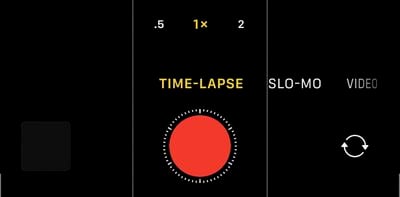
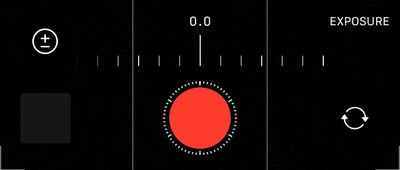
When you shoot a Time Lapse video in low-light conditions, Night Mode will automatically be activated. Note that the number of frames captured per second is relative to the time you record for. The longer you record, the fewer frames will be captured each second, and the more dramatic the accelerated effect of the action will be during playback, which is condensed to about 20-40 seconds regardless of how long you took video.
If you record for less than 10 minutes then the frame capture is 2 frames per second. After 10 minutes, this is reduced to 1fps, and will reduce further at 40 minutes, 80 minutes, and so on. There is currently no way to change the frame rate manually in the stock Camera app.
A tripod is strongly suggested for Night mode Time-Lapse, but if you aren't using a tripod, make sure you hold the iPhone as steadily as possible for optimal results.