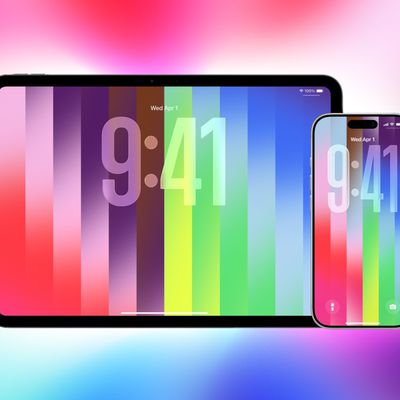
Apple's iPhone 15 Pro and iPhone 15 Pro Max introduce a new programmable Action button that replaces the traditional ring/silent switch above the volume buttons.
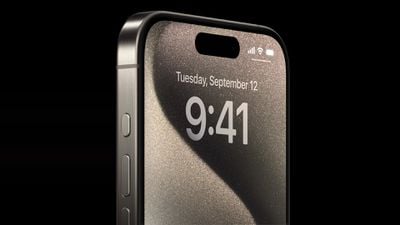
The Action button can be programmed to perform several different functions, but don't worry – the ability to switch between Silent and Ring mode has not gone away. They are simply activated differently.
By default, the Action button is assigned to mute and unmute your ringer, just like the traditional mute switch. Fine-tuned haptic feedback and visual cues in the Dynamic Island accompany every press, ensuring you'll know that it is launching the intended action.
To turn on mute right out of the box, simply follow these steps:
- Long-press the Action button to mute your device (you should feel the haptic feedback emit three pulses).
- To confirm that your iPhone 15 Pro is silenced, short press the Action Button. A "Silent" icon will appear in the Dynamic Island to signal the change.

- Long press again to unmute your device. You should feel a single haptic pulse and see a "Ring" icon appear in the Dynamic Island.
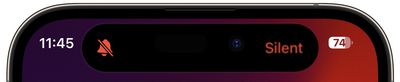
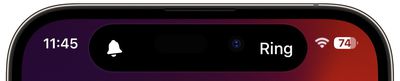
That's all there is to it. Of course, if you're feeling adventurous you can customize the Action button to perform another function, and if you change your mind afterwards, you can always change it back to its original ring/silent setting.
Switch Silent Mode Off in Control Center
On iPhone 15 Pro, Apple has also added a button to the Control Center that you can use to quickly switch between Mute/Silent and Ringer mode. Simply swipe diagonally down from the upper left corner of the screen to invoke Control center, then tap the Silent/Ringer button.
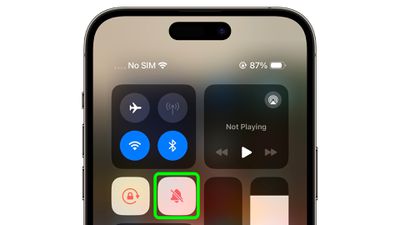
You have probably noticed that when Silent mode is active, a crossed-out bell icon appears next to the time in the Status bar. If you don't appreciate this being a permanent feature on your screen, you can disable it: Go to Settings -> Sounds & Haptics, and under the "Silent Mode" section, toggle off the switch next to Show in Status Bar.