Say you've captured a stunning sunset at the beach, but there's a trash can ruining the foreground. Or maybe you've taken the perfect family portrait, only to later realize there's a stranger in the background. With iOS 18.1's new Clean Up tool, Apple aims to make such photo frustrations a thing of the past. Here's how it works.
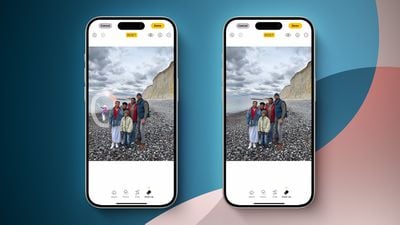
Clean Up uses Apple Intelligence to analyze your photos and intelligently remove unwanted elements while preserving the natural look of your images. Granted it's not quite as powerful as desktop editing tools, but it brings impressive object removal capabilities right to your iPhone, letting you fix photo distractions in seconds rather than spending time and money on complex editing software.
Clean Up is particularly clever when it comes to automatic detection – it can identify obvious unwanted elements in your photos and suggest removing them with a single tap. But even when you need to make manual selections, the process is pretty straightforward.
How to Use Clean Up in iOS 18.1
Here's how to use Clean Up to enhance your photos:
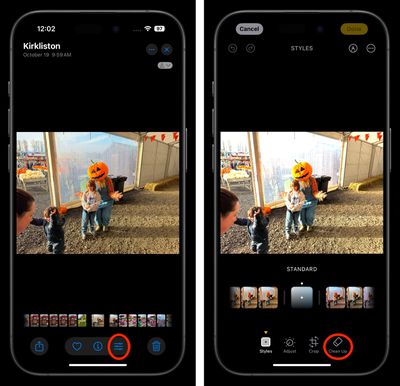
- In the Photos app, select a photo that you'd like to clean up.
- Tap the Edit button (the three horizontal sliders).
- Tap Clean Up. (The tool may need to download the first time you select it, but it won't take long.)

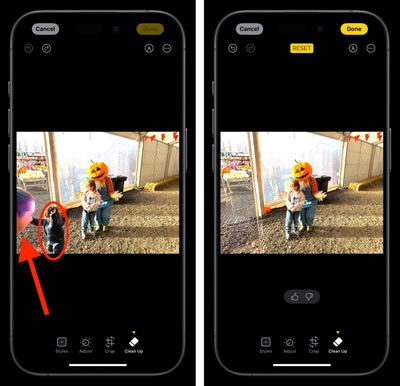
- If any object has a luminescent glow in the picture, Clean Up has identified it for potential removal – tap to select it, or tap, brush, or circle something else you want to remove. If it makes your selection easier, pinch to pan and zoom.
- Tap Done to finish.
Getting the Best Results
Clean Up performs best when working with smaller objects set against clear, uncluttered backgrounds. That's not to say it can't handle various editing tasks, but it's mainly designed for removing unwanted elements from the background of your photos rather than making major foreground alterations. For example, removing a street sign from behind your subject might work, but trying to remove someone from the front of a crowded group shot likely won't produce the results you're hoping for.
There are a few limitations to keep in mind. The tool isn't compatible with Live Photos (using Clean Up automatically disables Live Photo functionality). You can't use Clean Up on videos either. All other types of images, including screenshots and older photos not taken with your iPhone, are fair game though.
For transparency, Apple adds a note to the photo's metadata indicating AI editing has been applied. And don't worry about making mistakes – all Clean Up edits are fully reversible by tapping Edit and selecting Revert to Original.