Apple has launched a new Data and Privacy website that enables users to request a copy of all of the data associated with their Apple ID accounts that the company maintains on its servers. The page also provides options to delete or deactivate an Apple ID by following the step-by-step instructions outlined below.
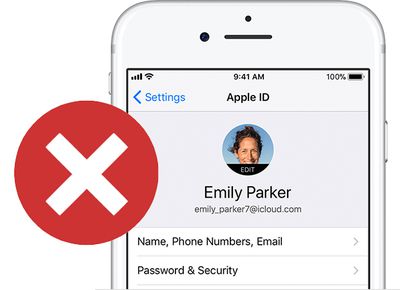
apple id account delete deactivate
While any customer anywhere can delete an Apple ID account, Apple says the ability to deactivate an Apple ID account is limited to accounts with locations set in the European Union, Iceland, Liechtenstein, Norway, and Switzerland. Apple intends to roll out the deactivation option around the world "in the coming months."

Keep in mind that deleting an Apple ID account and any associated data is a permanent, irreversible* action. After your account is deleted, Apple can't reopen or reactivate your account or restore any of your data, and you will no longer be able to access any of the content and services listed below.

  • Photos, videos, documents, and other content that you stored in iCloud are permanently deleted

  • You will no longer receive any messages or calls sent to your account via iMessage, FaceTime, or iCloud Mail

  • You will no longer be able to sign in to or use services such as iCloud, the App Store, iTunes Store, iBooks Store, Apple Pay, iMessage, FaceTime, and Find My iPhone

  • Your paid iCloud storage plans if any will be canceled

  • Any remaining Apple Store appointments and support cases are canceled, but any AppleCare plans you may have purchased remain valid

Content without Digital Rights Management, such as iTunes music purchases, continue working normally when your account is deleted or deactivated. However, any DRM-free content stored in iCloud Music Library isn't accessible or playable.

If you aren't planning to use your Apple ID for now, but may in the future, Apple recommends temporarily deactivating your account where possible instead of deleting it. Apple IDs can be reactivated by contacting Apple Support and providing the unique access code received during deactivation.

Apple also recommends that you take the following steps before you request deletion or deactivation of your account:

  • Back up the data that you store in iCloud, including content for any Apple or third-party apps that store data using iCloud

  • Download any DRM-free purchases, iTunes Match tracks that you don't have copies of, and any other music and media

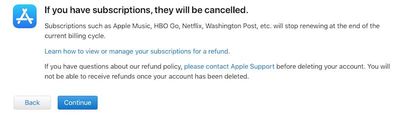
  • Review any active subscriptions, as any remaining subscriptions are canceled at the end of their billing cycles, even during deactivation

  • Save copies of any Apple-related information that you currently need or expect to need

  • Sign out of all your devices to avoid issues with apps that use your Apple ID account or iCloud. If your account is deleted, you can't sign out of iCloud or turn off Find My iPhone Activation Lock on your devices. If you forget to sign out, you might not be able to use your device when your account is deleted.

How to Delete Your Apple ID Account

  1. Open a web browser on your Mac, PC, or iPad, and navigate to privacy.apple.com. The option is not available on iPhone.

  2. Enter your Apple ID email and password. Answer any security questions or authorize two-factor authentication on another device if prompted.
    get a copy of your apple data

  3. On the Apple ID & Privacy page, select Continue.
    get a copy of your apple data5

  4. Under Delete Your Account, select Get Started.
    delete get started

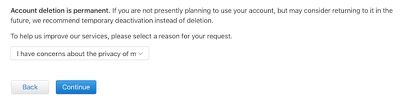
  5. Select a reason for deleting your account from the dropdown menu, such as "prefer not to say," and select Continue.
    account deletion reason

  6. Review the checklist of important things to know before deleting your account and select Continue.
    account deletion first checklist

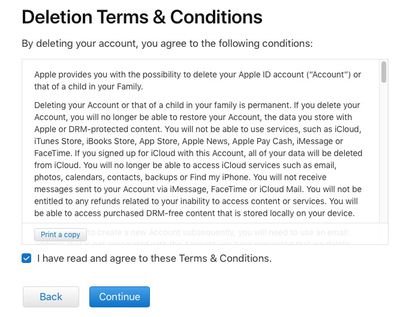
  7. Review the deletion terms and conditions, check off the read and agree box, and select Continue.
    account deletion terms

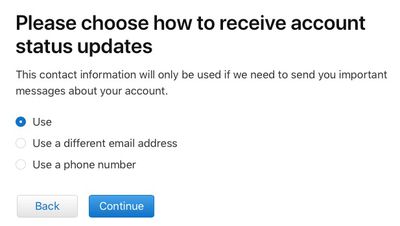
  8. Choose how to receive account status updates: the email used to create the Apple ID, a different email address, or by phone. Then select Continue.
    how to reach

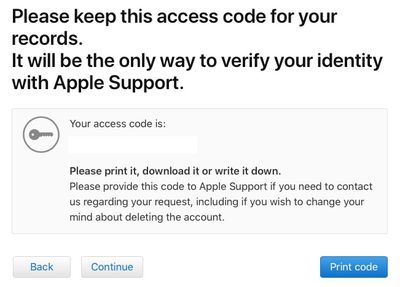
  9. Print, download, or write down the unique access code, which is needed to contact Apple Support regarding your request, including if you wish to change your mind about deleting the account for a short period after the request is submitted. Then select Continue.
    deletion write down code

  10. Enter the access code to confirm that you have received it. Then select Continue.
    enter code to continue

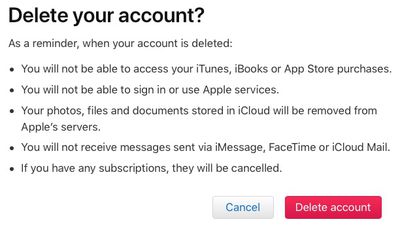
  11. Review the list of important details one more time and select Delete Account.
    delete account red button

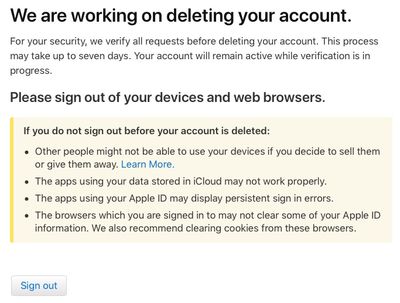
  12. Apple will confirm it is working on deleting your account on the website and in an email. Apple says the process may take up to seven days. Your account will remain active while verification is in progress.
    working on deleting

  13. Remember to sign out of the Apple ID on all devices and web browsers before the account is deleted.
How to Deactivate Your Apple ID Account

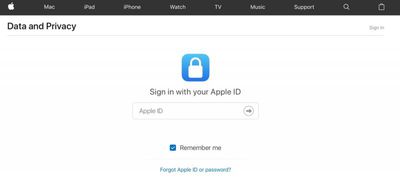
  1. Open a web browser on your Mac, PC, or iPad, and navigate to privacy.apple.com. The option is not available on iPhone.

  2. Enter your Apple ID email and password. Answer any security questions or authorize two-factor authentication on another device if prompted.
    get a copy of your apple data

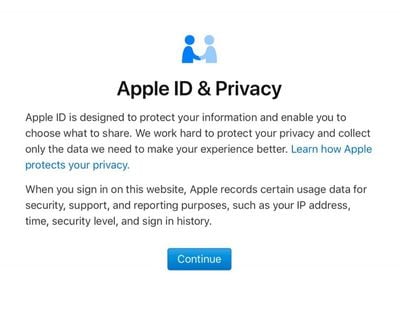
  3. On the Apple ID & Privacy page, click Continue.
    get a copy of your apple data5

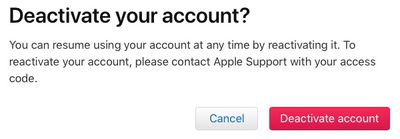
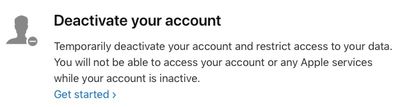
  4. Under Deactivate Your Account, select Get Started.
    deactivate get started

  5. Select a reason for deactivating your account from the dropdown menu, such as "prefer not to say," and select Continue.

  6. Review the checklist of important things to know before deactivating your account and select Continue.

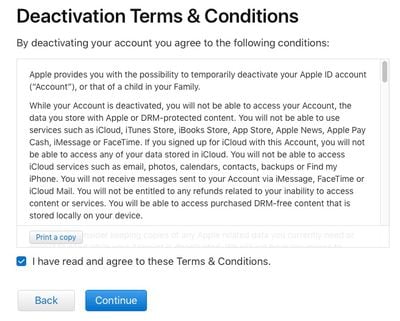
  7. Review the deactivation terms and conditions, check off the read and agree box, and select Continue.
    deactivation terms

  8. Choose how to receive account status updates: the email used to create the Apple ID, a different email address, or by phone. Then select Continue.
    how to reach

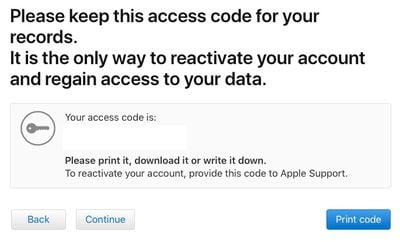
  9. Print, download, or write down the unique access code, which is needed to contact Apple Support regarding your request, including if you wish to reactivate your account at any time. Then select Continue.
    deactivate code

  10. Enter the access code to confirm that you have received it. Then select Continue.
    enter code to continue

  11. Review the important details one more time and select Deactivate Account.
    deactivate red button

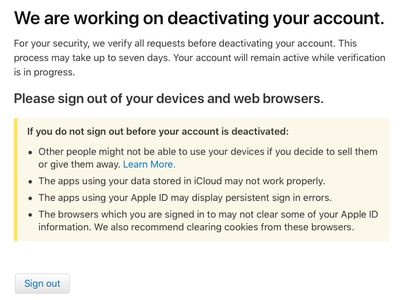
  12. Apple will confirm it is working on deactivating your account on the website and in an email. Apple says the process may take up to seven days. Your account will remain active while verification is in progress.
    working on deactivation

  13. Remember to sign out of the Apple ID on all devices and web browsers before the account is deactivated.
These new options satisfy the requirements of the European Union's new General Data Protection Regulation (GDPR), enforceable starting May 25, but Apple plans to make them available around the world.

* For a short time, you can enter a unique access code provided by Apple during the deletion process should you change your mind about deleting your account. Apple will notify you when your account has been irreversibly deleted.


Top Rated Comments

Kabeyun Avatar
99 months ago
So what happens when hackers access your account and delete it?
The same thing that happens if a hacker deletes any other account: it’s deleted.

Won’t happen though. We’ve been able to delete our Apple accounts for years. How many reports of this have you heard?
Score: 4 Votes (Like | Disagree)
macduke Avatar
99 months ago
How far can this be taken? Can you import this downloaded data into another account? I've got two Apple IDs because I was an idiot when setting up my accounts. I setup my iTunes Apple ID that uses a non-Apple email address in the early 2000s and my .MAC account a few years later when I got my first Mac. So I've got all these purchases on the first account and all my iCloud data on the second account, along with an account name I'd like to keep because it's shorter and ends with @mac.com. Could I, in theory, download my data from my iTunes/App Store account, delete it, and merge that into my @mac.com account? Or download/delete my old @mac.com account, and create a new account and import the data from both of those accounts and it will maintain the iCloud/iTunes/App Store data from both but under a new user name? This has been a hassle for so many years! If they never sort this out, when I strike it rich I'm going to just rebuy all my content on my iCloud account.
Score: 2 Votes (Like | Disagree)
riverfreak Avatar
99 months ago
So has anyone downloaded their data to see what Apple retains, above and beyond the obvious things like purchases?

And does the data tool allowing you to selectively purge data like Google (sort of) allows? I really wish that they’d let you delete purchases. So annoying having to go through and “hide” apps that are now defunct.
Score: 1 Votes (Like | Disagree)
4254126 Avatar
99 months ago
So has anyone downloaded their data to see what Apple retains, above and beyond the obvious things like purchases?

And does the data tool allowing you to selectively purge data like Google (sort of) allows? I really wish that they’d let you delete purchases. So annoying having to go through and “hide” apps that are now defunct.
I've currently got a case open with this after I wrote Phil Schiller an email on this exact question. He never replied but I got contacted by the "sub-manager" of the App Store. They are aware there are cases where this is needed/useful. I hate having all that trash and old apps cluttering my Apple ID.
Score: 1 Votes (Like | Disagree)
timeconsumer Avatar
99 months ago
How far can this be taken? Can you import this downloaded data into another account? I've got two Apple IDs because I was an idiot when setting up my accounts. I setup my iTunes Apple ID that uses a non-Apple email address in the early 2000s and my .MAC account a few years later when I got my first Mac. So I've got all these purchases on the first account and all my iCloud data on the second account, along with an account name I'd like to keep because it's shorter and ends with @mac.com. Could I, in theory, download my data from my iTunes/App Store account, delete it, and merge that into my @mac.com account? Or download/delete my old @mac.com account, and create a new account and import the data from both of those accounts and it will maintain the iCloud/iTunes/App Store data from both but under a new user name? This has been a hassle for so many years! If they never sort this out, when I strike it rich I'm going to just rebuy all my content on my iCloud account.
Same situation here. At first they didn’t allow .MAC accounts to be used. So I signed up for my iTunes account with another email. I’d love to be able to merge the accounts together.
Score: 1 Votes (Like | Disagree)

Popular Stories

iOS 26

iOS 26.4 and iOS 27 Features Revealed in New Leak

Friday December 12, 2025 10:56 am PST by
Macworld's Filipe Espósito today revealed a handful of features that Apple is allegedly planning for iOS 26.4, iOS 27, and even iOS 28. The report said the features are referenced within the code for a leaked internal build of iOS 26 that is not meant to be seen by the public. However, it appears that Espósito and/or his sources managed to gain access to it, providing us with a sneak peek...
iOS 26

iOS 26.2 Coming Soon With These 8 New Features on Your iPhone

Thursday December 11, 2025 8:49 am PST by
Apple seeded the second iOS 26.2 Release Candidate to developers earlier this week, meaning the update will be released to the general public very soon. Apple confirmed iOS 26.2 would be released in December, but it did not provide a specific date. We expect the update to be released by early next week. iOS 26.2 includes a handful of new features and changes on the iPhone, such as a new...
iOS 26

Apple Releases iOS 26.2 With Alarms for Reminders, Lock Screen Changes, Enhanced Safety Alerts and More

Friday December 12, 2025 10:10 am PST by
Apple today released iOS 26.2, the second major update to the iOS 26 operating system that came out in September, iOS 26.2 comes a little over a month after iOS 26.1 launched. ‌iOS 26‌.2 is compatible with the ‌iPhone‌ 11 series and later, as well as the second-generation ‌iPhone‌ SE. The new software can be downloaded on eligible iPhones over-the-air by going to Settings >...
AirPods Pro Firmware Feature

Apple Releases New Firmware for AirPods Pro 2 and AirPods Pro 3

Thursday December 11, 2025 11:28 am PST by
Apple today released new firmware designed for the AirPods Pro 3 and the prior-generation AirPods Pro 2. The AirPods Pro 3 firmware is 8B30, up from 8B25, while the AirPods Pro 2 firmware is 8B28, up from 8B21. There's no word on what's include in the updated firmware, but the AirPods Pro 2 and AirPods Pro 3 are getting expanded support for Live Translation in the European Union in iOS...
macOS Tahoe 26 Thumb

Apple Releases macOS Tahoe 26.2 With Edge Light

Friday December 12, 2025 10:08 am PST by
Apple today released macOS Tahoe 26.2, the second major update to the macOS Tahoe operating system that came out in September. macOS Tahoe 26.2 comes five weeks after Apple released macOS Tahoe 26.1. Mac users can download the macOS Tahoe update by using the Software Update section of System Settings. macOS Tahoe 26.2 includes Edge Light, a feature that illuminates your face with soft...
AirTag 2 Mock Feature

Apple AirTag 2: Four New Features Found in iOS 26 Code

Thursday December 11, 2025 10:31 am PST by
The AirTag 2 will include a handful of new features that will improve tracking capabilities, according to a new report from Macworld. The site says that it was able to access an internal build of iOS 26, which includes references to multiple unreleased products. Here's what's supposedly coming: An improved pairing process, though no details were provided. AirTag pairing is already...
ipados 26 1 slide over

Apple Releases iPadOS 26.2 With Multitasking Improvements

Friday December 12, 2025 10:09 am PST by
Apple today released iPadOS 26.2, the second major update to the iPadOS 26 operating system released in September. iPadOS 26.2 comes a month after iPadOS 26.1. The new software can be downloaded on eligible iPads over-the-air by going to Settings > General > Software Update. iPadOS 26.2 continues with the multitasking improvements that were added with iPadOS 26.1. You can now drag and...
bug security vulnerability issue fix larry

Update Now: iOS 26.2 Fixes 20+ Security Vulnerabilities

Friday December 12, 2025 11:11 am PST by
Apple today released iOS 26.2, iPadOS 26.2, and macOS 26.2, all of which introduce new features, bug fixes, and security improvements. Apple says that the updates address over 20 vulnerabilities, including two bugs that are known to have been actively exploited. There are a pair of WebKit vulnerabilities that could allow maliciously crafted web content to execute code or cause memory...