

The new Files app in iOS 11 replaces iCloud Drive, offers a lot more functionality than its predecessor, and provides perhaps the best argument yet for using an iPad as your go-to mobile computer.
In Files, you have access not only to the files stored on your device and in iCloud, but also to those stored in third-party services that support integration with the app. Files also exploits all of the new multitasking gestures in iOS 11, making its file organization capabilities even more powerful.
The Files Interface
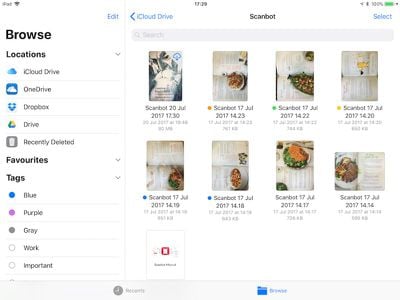
The Files app interface is very straightforward, although it varies from device to device and based on orientation, with various combinations using multiple columns, single columns with pages, or pop-overs. For the purposes of this overview, we'll look at using an iPad in landscape orientation, the most common setup for those doing productivity work.
Down the left side of the screen, in the Browse column, are links to your file sources, Favorites, and Tags to view files that are tagged with a particular color.
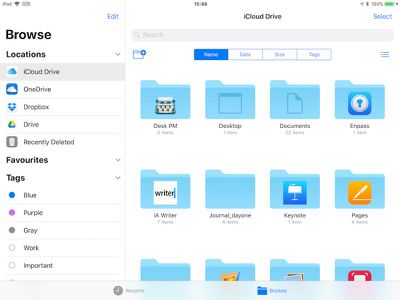
Over in the main window you'll see the files and folders in the selected location, which you can view by name, date, size, or tags. There's a button on the right of these options that you can tap to switch between list and icon view, while the button on the left lets you create a new folder.
At the bottom of the screen are two buttons to switch between the default Browse view and a Recents view, which is useful for returning to the files you were last working with.
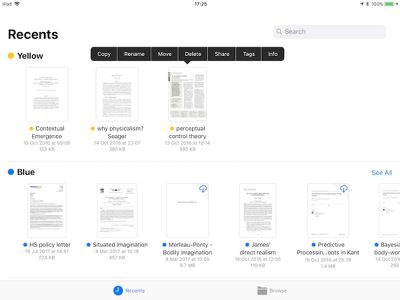
In either view, you can open a file in the main window simply by tapping it, or you can perform a long press on a file or folder to access a range of options, including rename, share, tag, favorite, and more. However, the best thing about the Files app is that you can organize multiple files quickly and easily by utilizing the new drag-and-drop features exclusive to iOS 11.
Moving Files With Drag and Drop
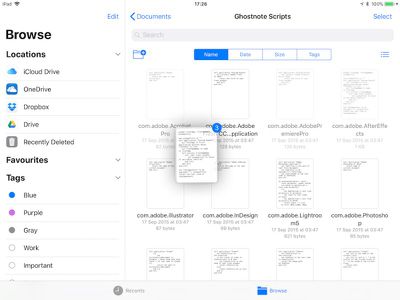
- Tap and hold a file you want to move, and it will expand slightly, ready to follow your finger around the screen.
- To move additional files, tap them while holding the original file and they will stack up underneath your finger.
- Keeping the same finger on the screen, use another finger – preferably one on your other hand – to browse the Files interface and locate a destination folder for the selected files.
- With the destination folder open, simply lift your finger from the screen to drop the files inside.
There's nothing to stop you from using iOS 11 drag-and-drop gestures to take files out of the Files app and move them into other iOS apps, as long as the app in question supports the file type. You might drag an image file into the Photos app to add it to your Photos Library, for example.
Organizing Your Files Manually
If you're uncomfortable using drag-and-drop gestures, you can organize your files using more traditional touch controls. Here's how.
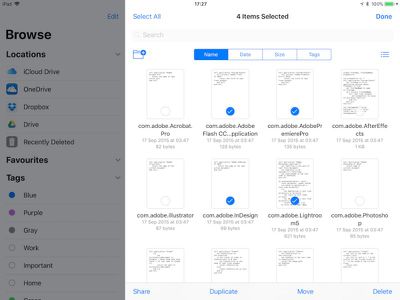
- Navigate to the folder containing the files you want to work with, and tap the Select button at the top-right of the screen.
- The Browse column will dim to put the focus on the currently selected folder. From here, you can tap one or more files to add a check mark against them indicating they've been selected for an action. A list of possible actions will appear along the bottom of the screen, including the option to duplicate or delete the file(s).
- Tap "Share" to bring up the iOS Share sheet, where you can send the file(s) to other people or apps, as well as access copy, print, and other actions.
- Tap the "Move" option and the Files app will present you with a directory tree, allowing you to navigate to the desired location for the file or files you've selected.
Tagging Documents
Using tags in the new Files app will help you locate particular files more easily, and they work much the same as tags do in macOS. As you'd expect, tapping a colored tag in the Browse column shows you all the files you've assigned that particular tag. To tag a file or folder, simply tap and hold it, and then drag it onto a tag in the sidebar.
Linking Third-Party Storage Services
If you install a third-party storage app on your iOS device, it should automatically appear in the Files app under the Locations list. If the service doesn't appear, then it doesn't yet support Files integration. Services that do support Files app integration include Google Drive, Box, Dropbox, OneDrive, and Transmit, with more to come soon.


















Top Rated Comments
This elder loves the new Files app. Especially the iCloud files management—much better than the old iCloud Drive.
I think any of us who worked with punch cards and large floppy disks can handle a phone file system.