How to Back Up Your iPhone or iPad to a Windows PC - MacRumorsOpen MenuShow RoundupsShow Forums menuVisit ForumsOpen Sidebar
Skip to Content

How to Back Up Your iPhone or iPad to a Windows PC

by

Not everyone who owns an iPhone or iPad has a Mac, which is why Apple made its mobile devices compatible with Windows PCs, too. Using USB, you can you can connect an iPhone or ‌iPad‌ to a Windows PC to set up the device, charge its battery, share its internet connection, transfer files, and sync content. This article shows you how to back up your iOS device on a Windows PC.
windows icloud hero pc iphone

Make Sure You Have the Correct USB Cable

As long as your PC has a USB port and is running Windows 7 or later, you can back up your iPhone or ‌iPad‌ to it. However, you'll need to make sure that you have a USB cable that terminates in the correct way to fit your PC's USB port.

If your iPhone or ‌iPad‌ came with a Lightning to USB Cable and your computer has a USB-C port, you'll need to connect the USB end of the cable to a USB-C to USB Adapter (sold separately), or use a USB-C to Lightning Cable (sold separately).

Apple Prefer Lightning Over USB C Feature
If your iPhone or ‌iPad‌ came with a USB-C to Lightning Cable and your computer has a USB port, you'll need to use a Lightning to USB Cable (sold separately).

If your ‌iPad‌ came with a USB-C Charge Cable and your computer has a USB port, use a USB-C to USB Adapter and a USB-A cable.

How to Back Up iPhone or iPad to a Windows PC

  1. On your computer, go to the Microsoft Store to download and install the latest version of iTunes for Windows.
  2. Connect your iPhone or ‌iPad‌ to your computer using a compatible USB charging cable (see above).
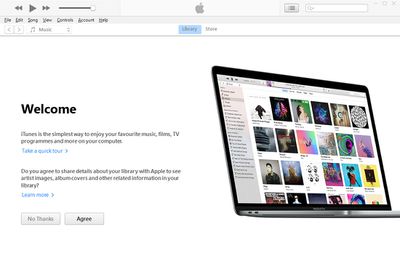
  3. Launch the iTunes app on your PC.
    itunes windows

  4. Click the iPhone button near the top-left of the iTunes window.
  5. Click Summary in the sidebar.
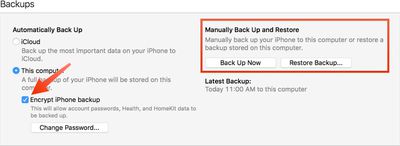
  6. Below "Backups," click Back Up Now.
  7. To encrypt your backup, select Encrypt local backup, type a password, then click Set Password.
    encryptedbackup

If you want to see the backups stored on your computer, choose Edit -> Preferences, then click Devices. Encrypted backups have a lock icon in the list of backups.


Related Forum: Mac Apps

Popular Stories

iPhone 18 Pro Deep Red Feature

iPhone 18 Pro Launching Later This Year With These 12 New Features

Wednesday March 18, 2026 7:39 am PDT by
While the iPhone 18 Pro and iPhone 18 Pro Max are not expected to launch for another six months or so, there are already plenty of rumors about the devices. It was initially reported that the iPhone 18 Pro models would have fully under-screen Face ID, with only a front camera visible in the top-left corner of the screen. However, the latest rumors indicate that only one Face ID component...
imac video apple feature

Apple Released Yet Another New Product Today

Friday March 20, 2026 2:39 pm PDT by
Apple has unveiled a whopping nine new products so far this March, including an iPhone 17e, iPad Air models with the M4 chip, MacBook Air models with the M5 chip, MacBook Pro models with M5 Pro and M5 Max chips, the all-new MacBook Neo, an updated Studio Display, a higher-end Studio Display XDR, AirPods Max 2, and now the Nike Powerbeats Pro 2. iPhone 17e features the same overall design as...
ios 26 4 yellow

Here Are Apple's Release Notes for iOS 26.4

Wednesday March 18, 2026 11:56 am PDT by
Apple provided developers and public beta testers with the release candidate versions of iOS 26.4 and iPadOS 26.4, which means we're going to see a public launch as soon as next week. The RC versions of the software include Apple's official release notes, giving us final details on what's included in the update. Apple Music - Playlist Playground (beta) generates a playlist from your...
Related Apple News: Entertainment | Local News | Buyers Guide | Lifestyle | World News