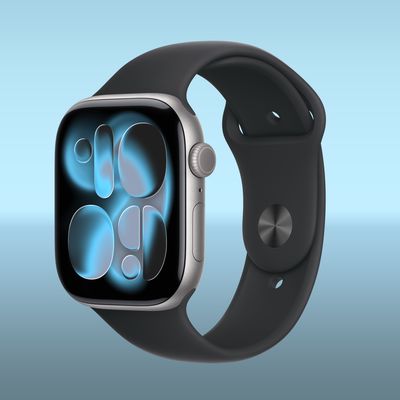
With the release of watchOS 7, Apple has added several new features to compatible Apple Watch models, such as new watch faces and sleep tracking, but it also drops support for the Force Touch gesture that some users may have come to think of as a second nature interaction on their wrist.
When users firmly pressed their Apple Watch screen, Force Touch technology would sense the extra pressure exertion and display additional content and controls depending on the context. But in watchOS 7, Apple has removed all Force Touch interactions from the UI, making the Force Touch sensor gasket in Apple Watch Series 5 and earlier models effectively superfluous.
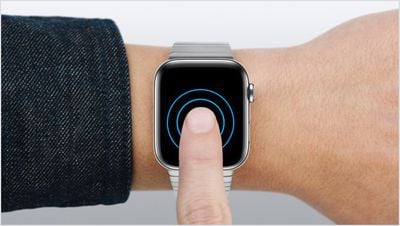
Below, we've collected 10 new functions in watchOS 7 that replace our favorite Force Touch features on Apple's digital timepiece. Some are more well known than others, but hopefully you'll learn at least one thing about what a firm press on your Apple Watch screen used to do, and what you need to do now that it's gone.
1. Clear All Notifications
The Apple Watch's notifications dropdown can get busy pretty fast, especially if you often forget to dismiss an incoming alert after reading it. Rather than deleting notifications one by one, a Force Touch gesture let you clear them all with a tap.
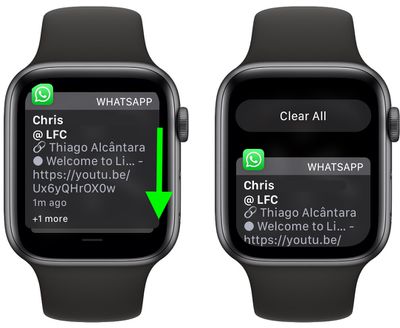
Now you have to swipe down to scroll to the top of your notifications and then tap the Clear All button.
2. Create and Remove Watch Faces
To create a custom watch face with a background picture, you still open the Apple Watch Photos app and select a photo.
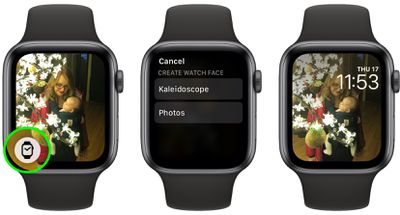
Instead of pressing firmly on the display like you used to, tap the Create Watch Face icon in the bottom-left corner of the screen instead, and then select Kaleidoscope or Photos.
3. Compose a New Message
On opening the Mail and Messages apps, you used to be able to reveal the option to compose a new message with a Force Touch gesture.
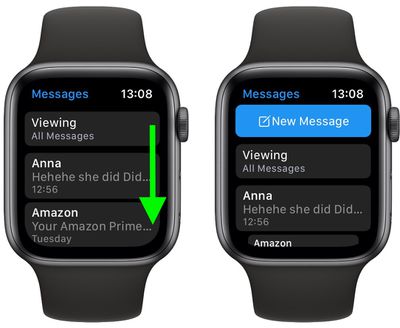
Now that's gone, you need to swipe down to reveal the New Message button at the top of your messages list.
4. Change Move Goal and Get a Weekly Activity Summary
Using Force Touch on the Activity app's main screen used to reveal a Weekly Summary showing how many times you've beaten your daily move goal so far this week. Pressing down on this screen again revealed a Change Move Goal button to adjust the amount of calories you're aiming to burn.
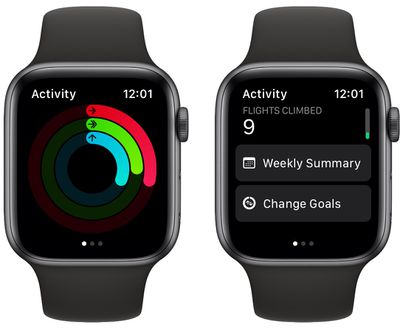
Both of these options have been replaced by individual buttons that you'll find right at the bottom of the Activity app's main screen, below today's activity stats.
5. Share Your Location With a Contact
When viewing a message in the Messages app, using Force Touch allowed you to quickly share your location with the message sender or view more details about the contact.
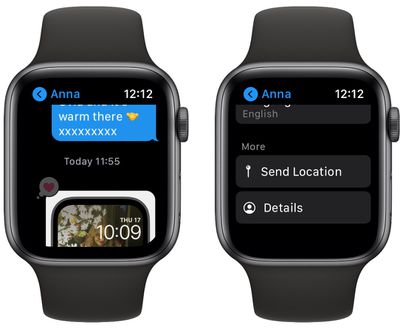
These options can now be found at the very bottom of the message screen, directly below the Instant Replies.
6. Switch Between App Grid View and List View
Force Touch in the App View would switch between the default honeycomb-style Grid layout and the alternative List View.
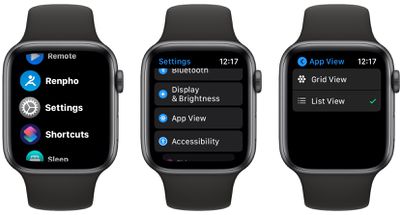
In watchOS 7, you can find both options in the Settings app under App View.
7. Hourly Temperature Forecast and Chance of Rain
The standard forecast display on the Apple Watch's stock Weather app shows the general weather conditions for the day ahead. Prior to watchOS 7, using Force Touch in the app displayed buttons for switching between weather conditions, chance of rain, and temperature.
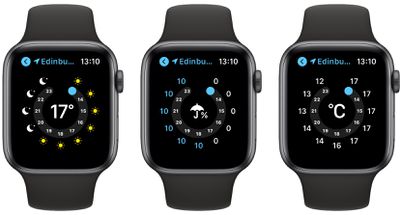
Fortunately, you can still access these views just as easily by tapping the 12-hour forecast to cycle through them.
8. Control Camera Settings Remotely
With the Apple Watch Camera app open, Force Touch would reveal a hidden submenu offering access to your iPhone's HDR, Flash, Live Photo, and Flip controls.
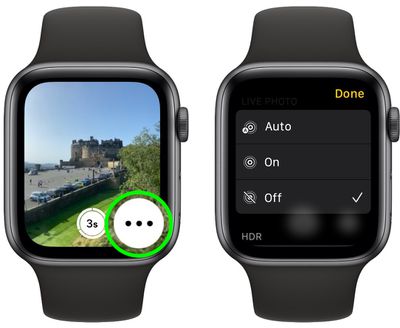
In watchOS 7, all of these controls are accessed by tapping the three dots in the bottom-right of the screen, which reveal a vertical scrolling menu.
9. Switch Calendar View
Prior to watchOS 7, changing view options within the Calendar app could be done using Force Touch.
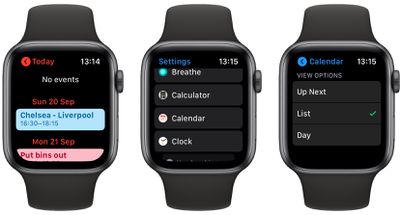
These options are now found in the Settings app under Calendar -> View Options.
10. Switch and Edit Watch Faces
Out of all the changes following the removal of Force Touch, this is almost certainly the least abrasive, and involves an almost identical gesture.
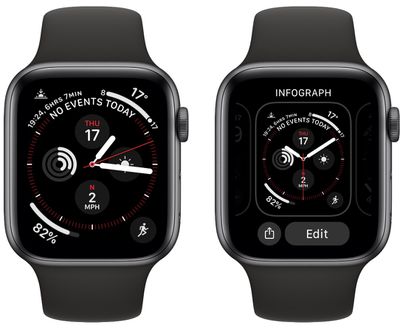
To switch between watch faces or customize the currently selected one, simply long press on the watch screen to invoke the watch face selector.
Final Thoughts
Force Touch was one of those Apple Watch features that was so discreet and unassuming that this arguably worked against it in the long run. Apple hasn't said why it removed the firm-press gesture in watchOS 7, but it could be that not enough users were aware of it for it to be genuinely useful.
That's a shame, because just like 3D Touch on iPhone, Apple implemented the haptic feedback technology across the entire watchOS interface, putting additional functionality right at your fingertips. Of course, 3D Touch went the same way as Force Touch on Apple Watch when the iPhone XR was launched, which some would argue suffered from the same lack of discoverability.
The iPhone XR introduced Haptic Touch to replace 3D Touch. While Haptic Touch (aka long press) is essentially a feedback mechanism, 3D Touch offered genuine input options like Peek and Pop. This change has since expanded to the entire iPhone lineup, which has allowed Apple to remove the capacitive layer integrated into the iPhone display.
Will you miss Force Touch after updating your Apple Watch to watchOS 7? Are there any other Force Touch gestures we missed? Let us know in the comments.