iOS 18 is bringing major changes to the Messages app, with Apple adding Tapback reaction changes new formatting, updated effects, satellite support, better texting with green bubble people, and eventually, several fun Apple Intelligence features.
This guide highlights everything that's new in the iOS 18 Messages app, and what's coming later.
Send Later
iOS 18 adds the option to schedule an iMessage to be sent to someone at a later time or date. If you know someone's birthday is coming up, for example, you can schedule a happy birthday text to them ahead of the date so it's ready to go.
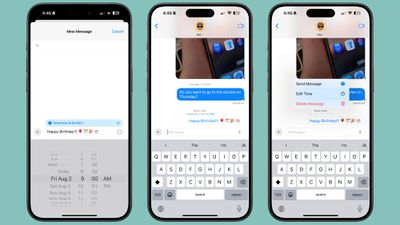
Scheduling a message can be only be done in conversations with other iMessage users, and it is not an option when texting with an Android user. It works in both individual and group chats, as long as all participants have an Apple device and access to iMessage.
To schedule a message, follow these steps:
- Open up a conversation in the Messages app.
- Tap on the "+" button on the left side of the text box.
- Tap on More.
- Choose Send Later.
- Type in your Message.
- To change the send time, tap on the blue bubble that defaults to Tomorrow 9:00 am. From there, you will have a slider that lets you input a date and a time.
- With your time selected and your message typed in, tap on the blue arrow to schedule it.
Messages can be scheduled up to 14 days in advance, so if it's August 1, for example, you can schedule up to August 15. Messages are sent even if your iPhone is offline without a Wi-Fi or cellular connection.
Scheduled messages are displayed at the bottom of a conversation. If you want to change the time of a message or cancel it, tap on the "Edit" button. You will have options to edit the time, delete the message, or send it immediately.
Tapback Reactions
Tapbacks are those little characters you can use to respond to a message by long pressing on it, so you don't need to type out a whole response to something that can be answered with a thumbs up or a heart. iOS 18 has two key updates for Tapbacks.
Updated Design
The six standard Tapback icons now feature color and more detail. You can see the new look when long pressing on a text to respond, and in the Tapbacks that you receive.
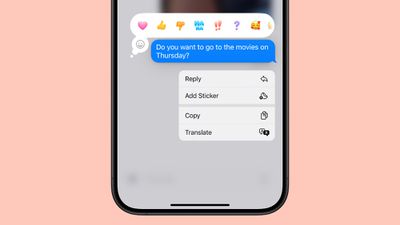
When you tap on a Tapback you've received on a message, you can now see who sent what, which is useful if you are in a group chat and get multiple Tapback responses.
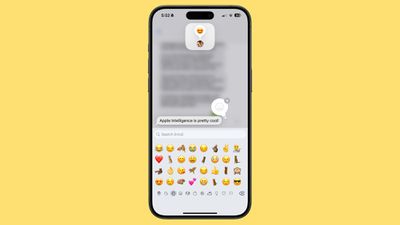
Emoji Support
Along with the six classic Tapback responses, you can now choose any emoji character when using Tapback. After long pressing to respond to a message, swipe to the left to see common emoji responses or tap on the generic emoji icon thought bubble to bring up the emoji picker.
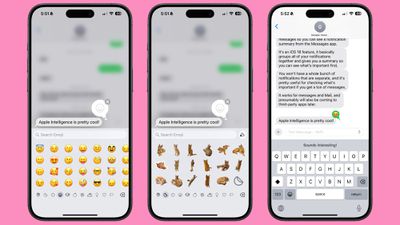
You can choose any emoji, but you can also select from your stickers or your Memoji. Tap on the Memoji icon at the bottom left to get to Memoji, or the sticker icon to see your sticker selections. To add one as a Tapback, just tap on your selection.
Stickers can be hard to see at the small size of a Tapback, but most emoji characters and Memoji work well.
RCS
RCS, or Rich Communication Services, is a new text message protocol replacing SMS and MMS. You'll see it when texting people who don't have iMessage, such as Android users. RCS has nothing to do with iMessage conversations, aka the conversations you have with other Apple device owners (blue bubbles), but it does improve texts with green bubble Android users.
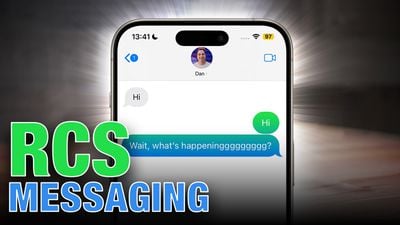
RCS is a more modern technology than SMS, and it allows for more feature parity in iPhone to Android text message conversations. Many of the frustrations you might have encountered when texting someone with an Android device are resolved with RCS, such as errors sending photos and videos.
Here's what you'll get with RCS:
- Support for higher resolution photos and videos.
- Support for larger file sizes and file sharing.
- Audio messages.
- Real-time typing indicators.
- Read receipts.
- Ability to send messages over cellular or Wi-Fi (SMS is cellular only). There is no cost to send an RCS message over Wi-Fi.
- Improved group chats.
Again, RCS only comes into play when you're texting someone who has an Android device. iMessage is still the default for conversations between Apple device owners, and blue bubbles and green bubbles are not changing.
We have a full guide on RCS if you want to know more about what to expect.
Messages via Satellite
Messages via satellite is a new feature that lets you send texts even when you don't have a Wi-Fi or cellular connection, leveraging the satellites that Apple uses for the Emergency SOS via satellite feature.
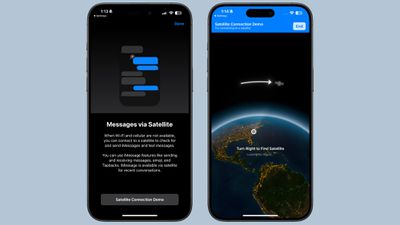
Messages via satellite is available on the iPhone 14 or later, and you can send and receive both iMessage and SMS messages, so you're not limited to texting with just iPhone users.
Right now, Messages via satellite is free, just like Emergency SOS via satellite. Apple offers two free years of satellite access with an iPhone 14 or later, but the company has expanded free access for the iPhone 14 until November 2025. Apple has not provided any insight into how much it will eventually charge for satellite access.
Smart Replies (Apple Intelligence - iOS 18.1)
Using Apple Intelligence, your iPhone can analyze the content in a message that you've received, suggesting Smart Reply options that you can tap for a quick response.
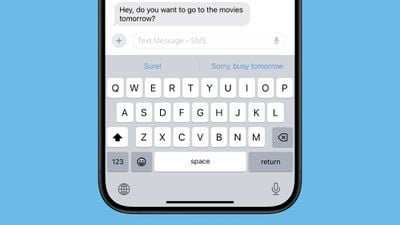
If someone asks a question like "Do you want to go to the movies?" Messages suggests responses like "Sure!" or "Sorry, busy tomorrow." Smart Replies aren't an option for every message that you receive, but Apple often has a suggestion.
Smart Replies show up at the top of the keyboard, where suggestions have been in prior versions of iOS. Smart Replies are similar to suggestions, but are more intelligent and are often complete phrases and responses rather than word suggestions that pop up as you type.
To use a Smart Reply, just tap it and it'll populate the text box so you can send it. If you don't care for the suggestion, just ignore it, and type in your own response. You'll still see suggestions once you disregard a Smart Reply.
Smart Replies are an Apple Intelligence Messages feature in iOS 18.1, which Apple is currently beta testing.
Writing Tools (Apple Intelligence - iOS 18.1)
Writing Tools aren't specific to the Messages app, but are a systemwide option anywhere you can input text. In Messages, you can write out a text and then select it with a tap and drag gesture to bring up the Writing Tools interface.
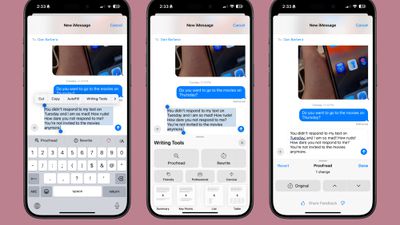
Here's what Writing Tools can do for a text message:
- Proofread what you've written for spelling and grammar errors, including word choice and sentence structure.
- Rewrite with a different tone, with options that include Friendly, Professional, and Concise.
- Summarize what you've written. You can get a quick summary, pull out key points, create a list of topics, or make a table.
You can tap on the various options to use the Writing Tools, and you can preview changes and decide not to use them or swap them in for what you've written.
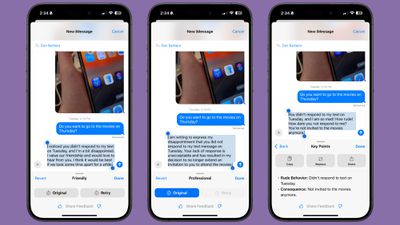
The Writing Tools feature is set to be available in iOS 18.1.
Notification Summaries (Apple Intelligence - iOS 18.1)
If you have multiple notifications from the Messages app, Apple Intelligence will summarize them for you so you can catch up at a glance and see what's most important without having to read through everything.
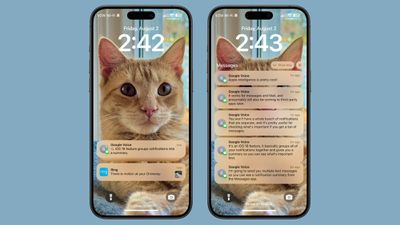
This works for both individual conversations and group conversations, and you can see the summaries on the Lock Screen. You'll get notification summaries in iOS 18.1.
Emoji Design Updates
When you send a single emoji to someone in iOS 18, the emoji now appears much larger than before so the detail is easier to see. Emojis in other quantities are still displayed at the same size.

Apple has also updated the emoji picker. Emoji are displayed larger and with more space between them, plus the Sticker and Memoji interfaces have been integrated into the emoji window.
Tapping on the two icons on the bottom left of the emoji picker will take you to Memoji and Stickers, respectively. You can create Memoji and make new stickers directly from the two sections that are in the emoji picker. For stickers, select the sticker section and tap on the blank sticker icon. For Memoji, tap into the Memoji section, tap the three dots, and then choose New, Edit, or Duplicate.
Stickers and Memoji as Emoji
Stickers and Memoji have new dedicated sections in the emoji picker because you can now use a sticker or a Memoji just like an emoji. If you add a sticker when typing a text, for example, it is added to the end of your text rather than sent as a separate image.
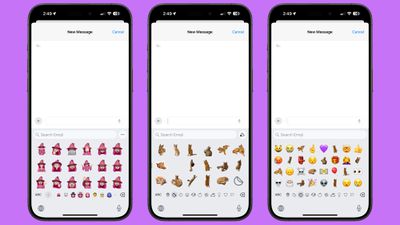
You can still send a full-size sticker as long as you send it separate from text.
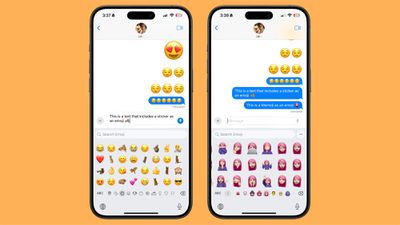
Stickers and Memoji sent as emoji only display as emoji on devices running iOS 18, iPadOS 18, macOS Sequoia, visionOS 2, and watchOS 11. On earlier versions of iOS, stickers are sent as separate images as before.
Text Formatting
You can enhance your text messages with new formatting options. After typing something, tap on the "A" icon above the keyboard. What you've typed is selected, and you can add bold, italic, underline, or strikethrough formatting.
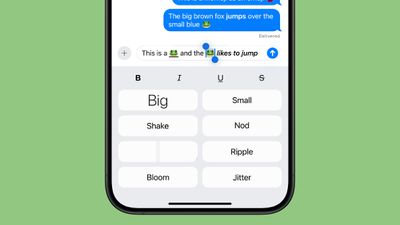
To add formatting to just one word, double tap on the word to select it and then tap on the "A" icon. You can also use the Text Effects option from the popup menu. Formatting can be used with emoji, but the bold and italic options don't do anything.
Text Effects
Along with the bold, italic, underline, and strikethrough formatting, there are new animated text effects that can be applied to your entire message, a single word, a phrase, or even an emoji or sticker.
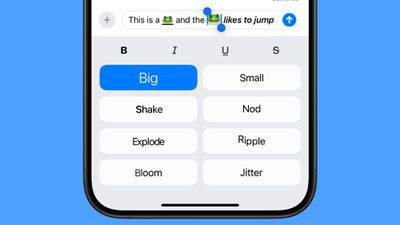
Just select the text that you want to add an effect to with a double tap and then tap on the "A" icon to get to the text effects interface.
Options include Big, Small, Shake, Nod, Explode, Ripple, Bloom, and Jitter.
In a conversation with someone running iOS 18 or one of its sister updates, the text or emoji that has an effect applied to it will continually animate when viewed. These effects do not work on earlier versions of Apple's operating systems and simply don't show up.
Math Notes
The systemwide Math Notes feature that lets your iPhone solve equations for you works in Messages. To see it in action, type in an equation and you'll get an immediate answer when you add in an equals sign.
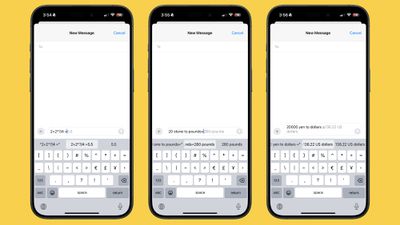
Math Notes also works for conversions in the Messages app, including currency conversions, temperature conversions, measurement conversions, and more. You can use it by typing in your conversion, such as "20 euros to dollars" and then adding in an equals sign to get the result.
Link Card Update
Apple tweaked the design of link cards in the Messages app, and the cards now have colorful backgrounds that match the color of the main image in the link, if available.
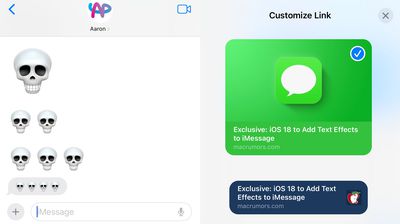
You can see link card previews before a link is sent, and if you long press, you can get customization options. Link cards can be converted to a simpler card style or transformed into a text link that only shows the hyperlink with no preview at all.
Image Playground (Apple Intelligence - Coming Later This Year)
Image Playground is an upcoming Apple Intelligence feature that is designed to let you create images using text-based prompts, much like you can do with other AI image generation platforms.
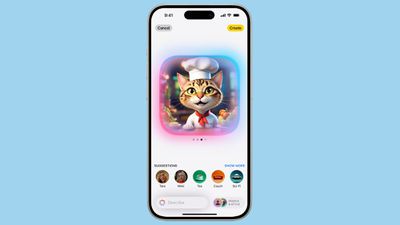
Apple is integrating Image Playground into the Messages app, so you can create and send images without having to swap over to another app. Apple Intelligence can glean the gist of your conversation from the Messages app and come up with suggestions for images that you might want to send.
Image Playground can even incorporate images of your friends and family, so if you're chatting with a friend, you can create a silly image that uses the friend's contact photo. Apple adds a style to each image, so there is no option to generate something that could be mistaken for a real photo.
You can choose from Animation, Illustration, and Sketch styles, and all image generation is done on-device.
Genmoji (Apple Intelligence - Coming Later This Year)
Based on Image Playground, Genmoji lets you create custom emoji with a text prompt. Have you always wanted an emoji of a mint chocolate chip ice cream cone? It can be made with Genmoji.
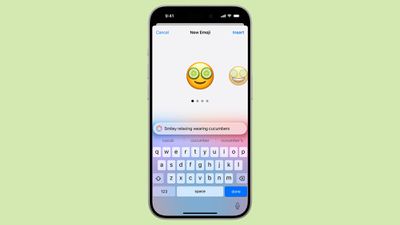
Need a cat made from pizza, or a flower that's not a rose or a sunflower? Genmoji will make it possible. With the Genmoji interface, you can describe a Genmoji and Apple Intelligence will generate several options for you to choose from.
You can even create an emoji based on the contact image of a friend or family member, similar to Image Playground.
Genmoji behave just like emoji and can be used in place of emoji.
Apple Intelligence Notes
To use the upcoming Apple Intelligence features Apple will add to iOS 18 in iOS 18.1 and beyond, you need an iPhone 15 Pro, iPhone 15 Pro Max, or any iPhone 16 model. M-series iPads and Macs also support Apple Intelligence.
Read More
Additional information on new features that Apple has added in iOS 18 can be found in our iOS 18 roundup.