On iPhone and iPad, a long press (also known as a press-and-hold) gesture will often initiate a different action in an app that isn't immediately obvious, such as revealing an icon's contextual menu. On recent iPhones, a long press will sometimes also offer haptic feedback in the form of a vibration, which Apple calls Haptic Touch.
Apple has made extensive use of the long press gesture and Haptic Touch in its apps, which means if you don't tend to long press screen elements, you could be unaware of some convenient shortcuts to everyday actions, or you could even be missing out on app functionality altogether.
This is particularly true for Safari, Apple's native mobile browser, which has several handy features that can be accessed with a long press. In this article, we've put together 10 of our favorite long press tips for Safari on iPhones and iPads running iOS 13.
Note that the default minimum period that a finger must press on the screen for the long gesture to be recognized is half a second. If you're having trouble performing a long press, open the Settings app, go to Accessibility -> Haptic Touch, and try selecting a Fast or Slow touch duration. There's also a handy interactive demo area for you to test each setting.
1. Bookmark Multiple Tabs in One Go
Make sure you have a few tabs open in Safari that you want to reference at a later time. Now, select one of those tabs, and in the main browsing window, long press the Bookmark icon (it looks like an open book).
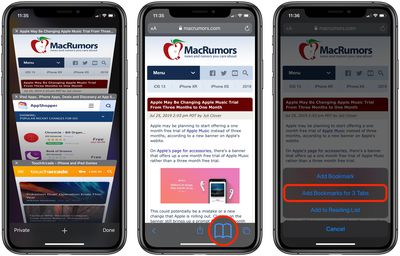
A popup menu will appear on the screen that includes options to Add to Reading List and Add Bookmarks for X Tabs, X being the number of tabs open. Once you've tapped the latter option, you'll be asked to save the tabs in a new bookmarks folder. Alternately, you can choose an existing folder in which to save the tabs.
2. Bulk Copy Links in a Bookmarks Folder
Following on from the last tip, if you long press on a bookmarks folder in Safari, you'll see a Copy Contents option pop up in the contextual menu.
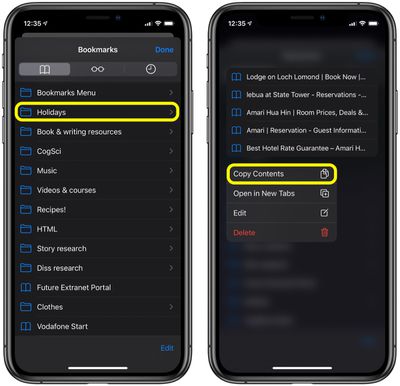
Selecting this will copy a list of every website URL in that folder to your clipboard, allowing you to paste it elsewhere for easy sharing.
3. Fast Scroll Web Pages
A scroll bar appears on the right-hand side of the Safari window whenever you swipe to navigate a web page.
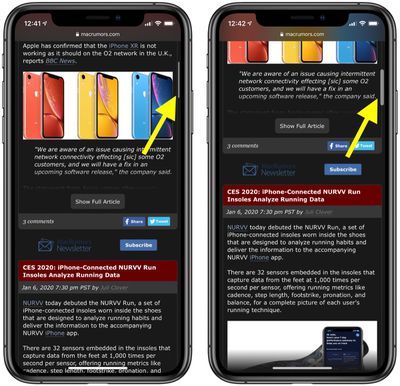
If the content you're viewing is long, perform a long press on the scroll bar. The bar will swell slightly and you'll be able to drag it up and down and scroll at a much faster rate.
4. Close All Open Tabs
If the number of active tabs has gotten out of hand in your browser session, long press the Tabs icon in the bottom-right corner (top-right on iPad) of the web page view to reveal the Close All Tabs option.
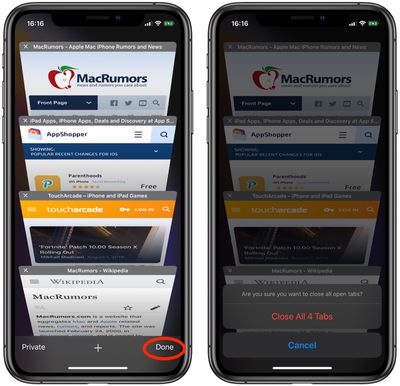
If you're in the vertical tabs view, you can reveal the same option by long pressing the Done button, which appears in the same location.
In iOS 13, you can actually get Safari to close tabs on your behalf, based on when you last viewed them. Launch the Settings app and select Safari -> Close Tabs, and you'll find options to make the browser automatically close tabs that have not been viewed After One Day, After One Week, or After One Month.
5. Re-open Recently Closed Tabs
If you've accidentally closed a browser tab in Safari and want to open it back up, open up the Tabs view and long press on the "+" icon to get a look at all of the tabs that you've recently closed.
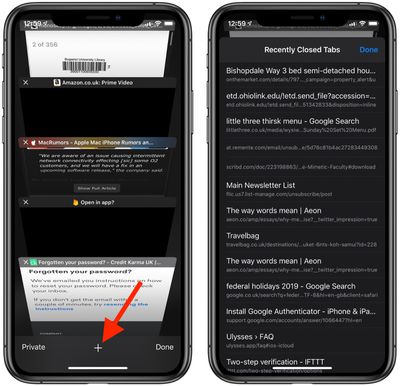
It's worth remembering that this long press option exists, because if someone gets ahold of your phone and checks your browser, even if you've closed out a tab, it's still going to be accessible in Safari, unless you were using a private browser window or have cleared your browsing history.
6. Open All Bookmarks in a Folder in New Tabs
This option appears in the same contextual menu described in tip 2. Long press a bookmarks folder and you'll see an option to Open in New Tabs.
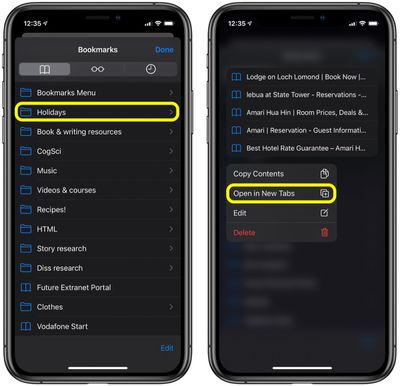
Select the option, and Safari will open everything in that folder in separate tabs, ready for perusal.
7. Preview a Favorite Site or Hyperlink
If you want to take a peek at what a specific web page hyperlink has to offer before actually visiting the site, long press the link to get a preview of it. Note that you can also perform this action on the Favorites or Frequently Visited sites that appear in the start page of a new tab.
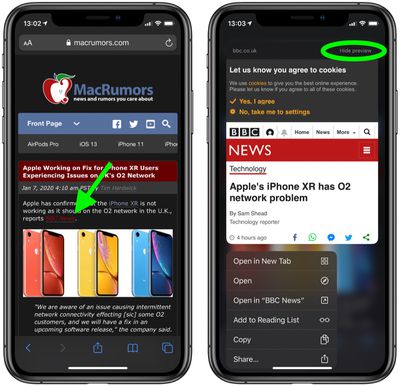
If, say, you just want to copy a URL and would rather not have to wait for the preview to load every time you long press on one, simply tap Hide preview at the top-right corner of a link preview, and you won't get one again.
You can revert this functionality on the same long press screen at any time by selecting Tap to show preview.
8. Merge All Safari Windows
This one is exclusively for iPad users running iPadOS. If you have multiple browser windows open in the background, you can tidy things up by merging all of them, including their tabs, into the active browser window.
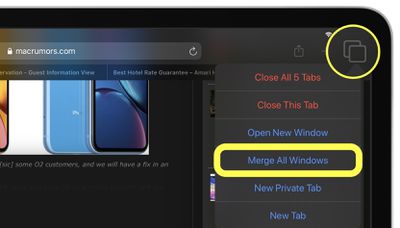
Simply tap and hold the Tabs icon in the top-right corner of the screen and select Merge All Windows.
9. Download a Linked File
Now that now Safari has a Downloads Manager, you can download files directly from hyperlinks. Simply tap and hold a linked file, then select Download Linked File from the contextual menu. You can tap the Downloads Manager icon in the top-right corner of the address bar to check on its progress.
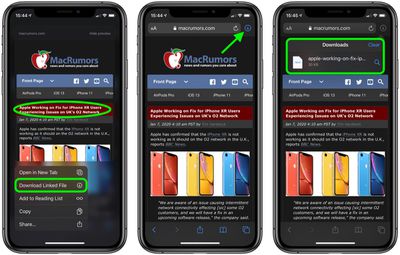
This option works for web pages, too. If you long press the headline of this article, for example, you can download an HTML version of it.
10. Access the Tab Control Panel
Another one that's just for Safari on iPad. Next time you have multiple tabs open, tap and hold one of those tabs to access the new tab control panel.
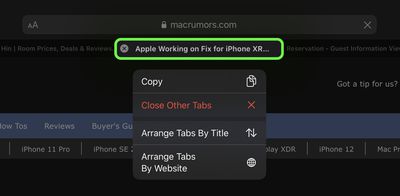
From this panel, you'll see options to copy the URL of the tab to the clipboard, close all other tabs, and two entirely new options allowing you to Arrange Tabs By Title or Arrange Tabs By Website. Select one of the latter two options, and your open tabs will be arranged alphabetically.