Apple's Home app is where you can control and automate HomeKit and Matter-enabled accessories, such as lights, smart TVs, and thermostats. Here's how to reorganize the Home overview to more easily navigate and control your accessories.
In the Home app, you can tap the Home tab to get an overview of your accessories, which are organized into several sections. The top row lets you view them by category, such as Lights, Security, Climate, Speakers, and Water.
Below that, you'll find Cameras (if you have any), followed by accessories organized by Favorites, Scenes, and Rooms, although not necessarily in that order.
If you want, you can re-organize the Home view to better suit how you use your HomeKit accessories. You can rearrange sections, rearrange the items in each section, and even change the size of individual accessory tiles. The following steps show you how it's done.
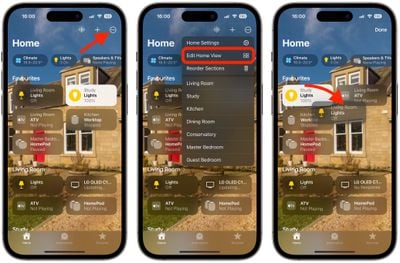
How to Rearrange Items in the Home Tab
- Tap the ellipsis button in the top-right corner of the screen.
- Select Edit Home View.
- Drag the tiles to your preferred positions. Other tiles will move out the way.
- Tap Done in the top-right corner when you're finished.
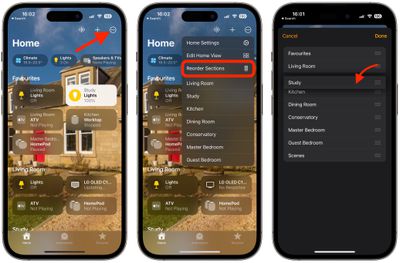
How to Reorder Sections in the Home Tab
- Tap the ellipsis button in the top-right corner of the screen.
- Select Reorder Sections.
- Drag the three-line (hamburger) icon next to a section to a new position.
- Tap Done in the top-right corner when you're finished.
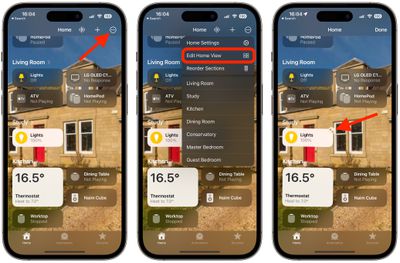
How to Resize Icons in the Home Tab
- Tap the ellipsis button in the top-right corner of the screen.
- Select Edit Home View.
- Tap a tile.
- Tap the Resize icon (the arrow with two points) to make a tile larger or smaller.
- Tap Done in the top-right corner when you're finished.
If you have Apple accessories in your Home setup, you can access further options in the Home app. If you have a HomePod, for example, you can access the device's temperature and humidity sensors. Click the link to learn how it's done.