Skip to Content

Never Miss Your Doorbell While Wearing Headphones on iPhone

by

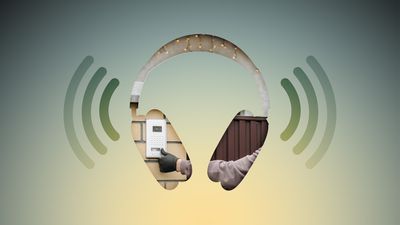
Noise-canceling headphones are great for blocking out distractions, but they can also block out sounds you actually need to hear, like a courier at the front door with your all-important package. Well, thanks to an Apple accessibility feature, your iPhone can do the listening for you and alert you when your doorbell rings.
Never Miss Your Doorbell While Wearing Headphones on iPhone Feature
Meet Sound Recognition, the feature in question that uses your iPhone's microphone to continuously monitor for specific sounds. When it detects one, you'll receive a notification that plays through your connected headphones, along with a vibration on your iPhone (or Apple Watch if you're wearing one).

The feature is primarily designed for people who are deaf or hard of hearing, but it's equally useful for anyone who works from home and regularly wears AirPods or noise-canceling headphones.

How to Enable Doorbell Alerts

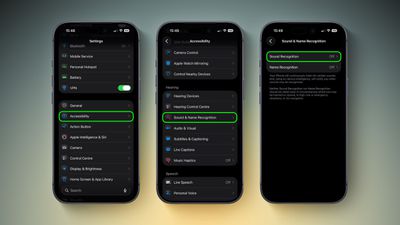
  1. Open Settings on your iPhone.
  2. Tap Accessibility.
  3. Under "Hearing," tap Sound & Name Recognition, then tap through to Sound Recognition.
    doorbell sound recognition2 1

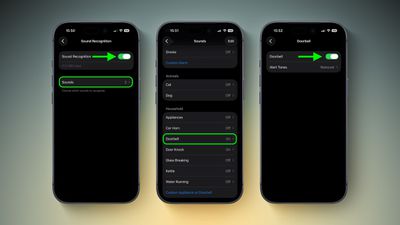
  4. Toggle on Sound Recognition, then tap Sounds.
  5. Under "Household," tap Door Bell and toggle it on in the next screen. You'll also see the option to choose a specific alert tone.
    settings

Note that your iPhone may need to download a small file (around 30MB) before the feature becomes active, so a Wi-Fi or data connection could be needed.

Training Your iPhone to Recognize Your Doorbell

If your iPhone doesn't reliably detect your specific doorbell, you can train it to recognize the sound by following these steps:

  1. Go to SettingsAccessibilitySound & Name RecognitionSound RecognitionSounds.
  2. Tap Custom Appliance or Doorbell, then enter a name.
  3. Place your iPhone near the doorbell and tap Start Listening.
  4. Ring your doorbell. Repeat this five times to complete the training.

Quick Access via Control Center

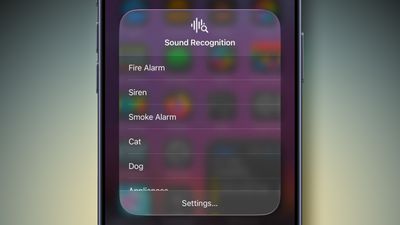
Once Sound Recognition is enabled, iOS automatically adds a toggle to Control Center. From here, you can press and hold the Sound Recognition icon to quickly enable or disable specific sounds without diving into Settings, which is handy if you only want doorbell detection when you're at home wearing headphones.

control center
Sound Recognition can also detect smoke alarms, dog barking, babies crying, water running, and more. Just keep in mind that Apple advises against relying on this feature in high-risk or emergency situations.

Top Rated Comments

Rychiar Avatar
3 weeks ago
can you make a HomePod listen for specific sounds like this? I'd like my kitchen HomePod to know when my fridge is beeping since the door always gets stuck
Score: 6 Votes (Like | Disagree)
3 weeks ago

Noise-canceling headphones are great for blocking out distractions, but they can also block out sounds you actually need to hear, like a courier at the front door with your all-important package. Well, thanks to an Apple accessibility feature, your iPhone can do the listening for you and alert you when your doorbell rings.


Meet Sound Recognition, the feature in question that uses your iPhone's microphone to continuously monitor for specific sounds. When it detects one, you'll receive a notification that plays through your connected headphones, along with a vibration on your iPhone (or Apple Watch if you're wearing one).

The feature is primarily designed for people who are deaf or hard of hearing, but it's equally useful for anyone who works from home and regularly wears AirPods or noise-canceling headphones.

How to Enable Doorbell Alerts

[LIST=1]
* Open Settings on your iPhone.

* Tap Accessibility.

* Under "Hearing," tap Sound & Name Recognition, then tap through to Sound Recognition.


Toggle on Sound Recognition, then tap Sounds.

* Under "Household," tap Door Bell and toggle it on in the next screen. You'll also see the option to choose a specific alert tone.

Note that your iPhone may need to download a small file (around 30MB) before the feature becomes active, so a Wi-Fi or data connection could be needed.

Training Your iPhone to Recognize Your Doorbell

If your iPhone doesn't reliably detect your specific doorbell, you can train it to recognize the sound by following these steps:
[LIST=1]
*
Go to SettingsAccessibilitySound & Name RecognitionSound RecognitionSounds.

* Tap Custom Appliance or Doorbell, then enter a name.

* Place your iPhone near the doorbell and tap Start Listening.

* Ring your doorbell. Repeat this five times to complete the training.

Quick Access via Control Center

Once Sound Recognition is enabled, iOS automatically adds a toggle to Control Center. From here, you can press and hold the Sound Recognition icon to quickly enable or disable specific sounds without diving into Settings, which is handy if you only want doorbell detection when you're at home wearing headphones.


Sound Recognition can also detect smoke alarms, dog barking, babies crying, water running, and more. Just keep in mind that Apple advises against relying on this feature in high-risk or emergency situations.


Article Link: Never Miss Your Doorbell While Wearing Headphones on iPhone ('https://www.macrumors.com/how-to/never-miss-doorbell-wearing-iphone/')
I already have this feature in my home. It's called "having a Terrier".
Score: 4 Votes (Like | Disagree)
3 weeks ago
Imagine when the apple doorbell can tell you exactly who is at the door and you get notified via your airpods
Score: 3 Votes (Like | Disagree)
WarmWinterHat Avatar
3 weeks ago

I think this is creepy as ****. They already started repurposing Ring as a surveillance network.

I've got an analogue video entry phone that makes enough noise that you can hear it listening to black metal with the airpods in and noise cancellation on.
Wife said the same thing when we saw the Ring Super Bowl commercial with the lost dogs.

No thank you.
Score: 3 Votes (Like | Disagree)
Windoes Avatar
3 weeks ago
Doesn’t work much with a door knocker
Score: 3 Votes (Like | Disagree)
KeepCalmPeople Avatar
3 weeks ago
Amazing - Apple creates problems while trying to solve problems, and then solves the problems they create.

I'm sure the list of things that you would actually want to be able to hear is quite long, such as the sound of breaking glass, gunfire etc. Trying to 'whitelist' all of those is quite the challenge. AI to the rescue? It never ends...
Score: 2 Votes (Like | Disagree)

Popular Stories

macbook air blue

What's Coming in the M5 MacBook Air

Thursday February 26, 2026 3:57 pm PST by
Along with the low-cost MacBook, Apple could introduce a refreshed version of the MacBook Air next week. Most of the focus will be on the new machine, but the MacBook Air is expected to get some useful internal updates. M5 Chip The next-generation MacBook Air will adopt the M5 chip, which Apple already introduced in the iPad Pro and MacBook Pro models that came out last year. Apple's M5...
ipad mini 7 1

Could Apple's OLED iPad Mini Finally Be a Kindle Killer?

Friday February 27, 2026 12:08 pm PST by
With a similar screen size and easy, one-handed grip, the iPad mini has always been the Apple device that overlaps most with dedicated e-readers. Now, amid rumors pointing to an OLED display for the next generation, could the iPad mini finally replace devices such as the Kindle and Kobo? The shift from LCD to OLED could make the iPad mini far more appealing as a reading device. OLED panels...
Apple Announces Special Event in New York Feature 1

Apple Teases 'A Big Week Ahead' With Announcements Starting Monday

Thursday February 26, 2026 6:06 am PST by
Apple CEO Tim Cook today teased "a big week ahead," with announcements starting Monday. His post included an #AppleLaunch hashtag with a colorful Apple logo, along with a short video that ultimately shows an Apple logo on the lid of a Mac. Apple is reportedly planning a three-day stretch of product announcements from Monday, March 2 through Wednesday, March 4, with up to five new products...
Related Apple News: World News | Disable An Airtag Found Moving With You | Macos Share Weblink Jumps To Specific Line | Ios 27 | Reviews