Browser tabs in Safari are a great way to visit multiple webpages in the same browsing session without having to close any of them, which makes them particularly useful for cross-referencing and researching things online.
But all too often, the number of tabs you have open can get out of control. This makes navigating them tricky and it can also sap system resources, so to avoid being overwhelmed by open tabs, try the following Safari tips to better manage them.
1. Bookmark All Open Tabs
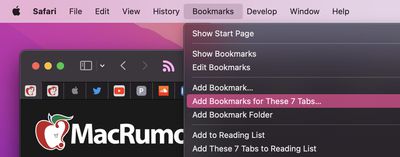
If the browser tabs you have open are related and you plan to regularly revisit them, it's worth bookmarking them together in their own bookmark folder. To do so, simply select Bookmarks -> Add Bookmarks for These X Tabs... (X being the number of open tabs).
You'll then be invited to create a name for the bookmark folder and select where you want it to be kept amongst your other bookmarks, which you can access at any time by selecting Bookmarks -> Show Bookmarks in the menu bar.
Note that you can perform a similar action to add all open tabs to your Reading List for later perusal, even when you're offline. (Bookmarks -> Add These X Tabs to Reading List.)
2. Use Tab Groups
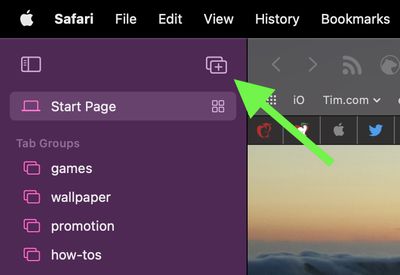
In macOS Monterey, Tab Groups are a neat way to save and manage related tabs without having to have those tabs active and taking up space. If you're planning a trip, for example, you can save all of your tabs into a "Vacation" group, accessing them when needed and leaving your device free for other content when you're not doing active planning.
To create a new Tab Group, click the Show Sidebar icon next to the traffic lights, then select New Tab Group. Alternately, click the down arrow next to the Show Sidebar icon and select either New Empty Tab Group or New Tab Group With X Tabs, "X" being the number of tabs currently open.
Any Tab Groups you create are listed in the sidebar for easy switching. You can also select groups by clicking the down arrow next to the Show Sidebar icon. Any tabs that are opened when a Tab Group is selected will automatically be included in that group. For more tips on working with Tab Groups, check out our dedicated how-to.
3. Change Safari's Tab Layout
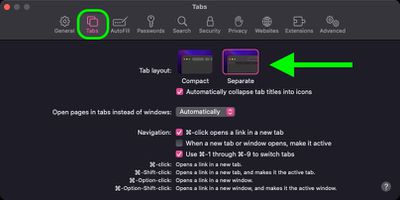
Safari offers two tab layouts: Compact and Separate. Compact is a more unified Safari design that does away with the dedicated URL and search interface and makes any individual tab able to be used for navigation input.
The problem with the Compact layout is that it severely limits space for multiple open tabs. In this regard, the Separate layout is more preferable, as it positions the URL/search bar at the top of the Safari window, with your tabs arranged below it.
If you're not already using the Separate tab layout, you can switch to it easily enough by selecting Safari -> Preferences... in the menu bar. Click the Tabs menu in the preference pane and select Tab Layout: Separate to remove the compact tab bar that merges everything together.
4. Rearrange Open Tabs
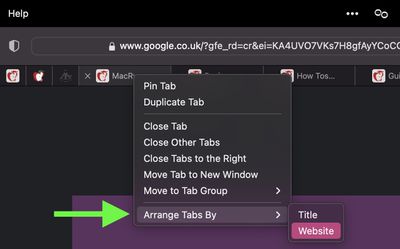
Sometimes you may have several open tabs from a handful of websites that you tend to visit but which are mixed up with other tabs from different places across the web.
In such cases, it can be useful to rearrange your tabs so that tabs from the same website are lined up next to each other, allowing you to easily review what you've read and dispense with any redundant tabs that were hiding between them.
To sort your tabs according to website, or title if you prefer, simply right-click any tab and select Arrange Tabs By -> Website or Title from the dropdown menu.
5. Pin Tabs
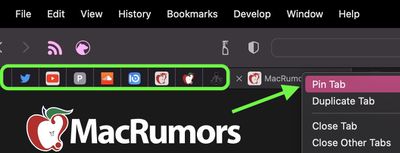
Safari's pinned tabs feature lets you better organize your tabs, especially if find you have too many open at the same time. It's particularly useful if you have certain websites that you tend to visit frequently throughout the day.
The neat thing about pinned tabs is that they stay in place, even when you open a new Safari window or quit and reopen Safari. And when you click a link to another website from a pinned tab, the other website opens in a new tab, ensuring your pinned tab always shows the website you pinned.
To pin a tab, drag the tab to the leftmost side of the tab bar, and when the tab shrinks to show just the website's favicon, simply drop it in place. You can also select Window -> Pin Tab from the menu bar, or right-click (Ctrl-click) a tab, then choose Pin Tab from the contextual menu.
If you have multiple pinned tabs, you can rearrange them in the Tabs bar by dragging them with your cursor. To unpin a website tab, just drag the pinned tab to the right side of the tab bar and it will expand to become a normal tab again.
6. Kill Them All
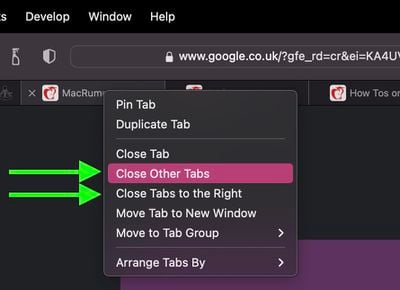
If you're done with all your other open tabs because you've found what you were looking for, then you can close all open tabs except the currently active one. Alternately, you can opt to close all open tabs to the right of the one you're currently viewing. Simply right-click the currently active tab and select Close Other Tabs or Close Tabs to the Right.