

With the 2016 MacBook Pro, Apple introduced an all-new design that incorporates a Touch Bar, a small touch-sensitive OLED display that offers up contextual controls depending on what you're doing on your Mac.
Though the Touch Bar has been available, in our experience, many Mac owners don't take advantage of it, so in our latest YouTube video, we thought we'd share a few tips and tricks that might make the Touch Bar more appealing.
Customize Your Control Bar
Most MacBook Pro owners are probably aware that this feature exists, but may not have delved into the customization options. Customizing the control strip is the best way to get the most out of the Touch Bar because you can choose the features you use most.
To get to the Control Strip settings, open up System Preferences, choose "Keyboard" and then select the "Customize Control Strip" option at the bottom of the window.
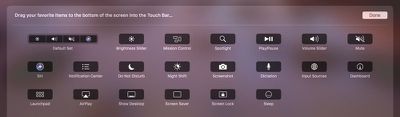
You can choose options like quick access to taking a screenshot, Night Shift, Do not Disturb, Screen Lock, Sleep, AirPlay, Spotlight, Mission Control, and more.
Set the Function Keys as Your Default
Want your function keys back as the default option? There's a setting for that. Like the Control Strip settings, it is located under Keyboard in System Preferences.
You can choose to have the Touch Bar display App Controls with Control Strip, which will change the available Touch Bar options with each app you use, or you can set it to display the function keys, an Expanded Control Strip, or just App Controls.
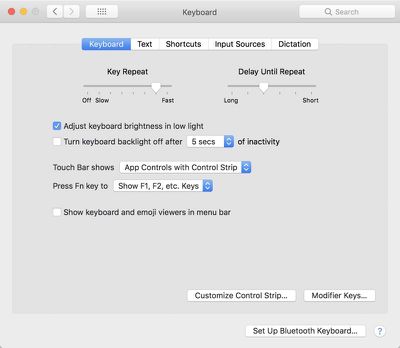
If you go to the "Shortcuts" section of the Keyboard settings and select Function Keys, you can also choose to have the function keys display on a per-app basis.
You can also customize the shortcut the Fn key brings up -- if you set the Touch Bar to function keys, the Fn key on the keyboard can be set to expand the Control Strip or show app controls. With the Control Strip set as the default, you can always bring up your function keys with the Fn key.
Take a Screenshot of Your Touch Bar
Though it's not obvious, there's a way to take a screenshot of the Touch Bar on the MacBook Pro. Just hold down Shift + Command + 6 all at the same time, and the screenshot will be saved to your desktop.

Accessibility Options
There are several Accessibility-related options that can be enabled for the Touch Bar for those who need them, including VoiceOver, Zoom, and Switch Control to display the Touch Bar on the MacBook Pro's screen.
To check out and enable Touch Bar Accessibility options, open up System Preferences and choose the "Accessibility" icon. VoiceOver controls for Touch Bar are enabled automatically when VoiceOver is turned on, while the other options are under "Zoom" and "Switch Control."
For more information, make sure to check out Apple's Accessibility support document for the Touch Bar.
Improve Touch Bar with Third-Party Apps
There are a few ways to make the Touch Bar more useful through third-party apps.
With Better Touch Tool, you can create your own shortcuts for the Touch Bar. The possibilities are extensive, ranging from tools to empty the trash on your Mac to accessing apps to seeing the time, date, and your battery level. Check out Reddit for some suggestions on how to use this tool.
Similarly, the TouchSwitcher app for the Touch Bar is designed to let you launch and switch between apps by adding a list of your most recently used apps to the Touch Bar.
Do you use the Touch Bar on the MacBook Pro? What are your favorite use cases for the feature? Let us know in the comments.



















Top Rated Comments
Why won’t Apple give us a touch screen on a MacBook Pro which would actually be useful? Not a silly bar which provides no tactile feedback, so means looking away from screen to use.