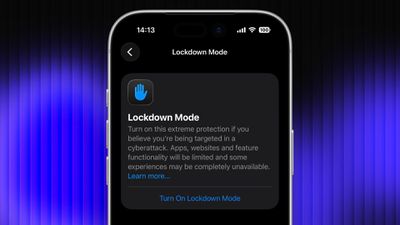
Lockdown Mode is an optional security feature designed by Apple to provide maximum protection against highly sophisticated digital threats. When enabled on your Apple device, it greatly reduces exposure to complex attacks by restricting certain features and network connections. Keep reading to learn how to use it across iPhone, iPad, and Mac.
lockdown
For most users of Apple devices, the standard iOS, iPadOS, and macOS security protections should be sufficient, whereas Lockdown Mode is aimed at users who could be targets of cyberattacks, such as journalists, activists, and government employees. That said, any user can enable it on their device for what Apple calls an "extreme" level of security.

Lockdown Mode Protections

When enabled, Lockdown Mode strictly limits or disables the functionality of features, apps, and websites. Lockdown Mode protections include the following:

  • In the Messages app, most message attachment types other than images are blocked, and some features like link previews are unavailable.
  • Incoming FaceTime calls from people you have not previously called are blocked. Incoming invitations for other Apple services from people you have not previously invited are also blocked.
  • Some complex web technologies and browsing features, including just-in-time (JIT) JavaScript compilation, are disabled unless the user excludes a trusted site from Lockdown Mode. This protection applies to Safari and all other web browsers using WebKit across the ‌iPhone‌, ‌iPad‌, and Mac.
  • Shared albums will be removed from the Photos app, and new shared album invitations will be blocked.
  • When a device is locked, wired connections with other devices/accessories are blocked.
  • Configuration profiles cannot be installed, and the device cannot enroll into mobile device management (MDM), while Lockdown Mode is turned on.
  • Certain network protocols and services are restricted.

How to Enable Lockdown Mode on iPhone and iPad

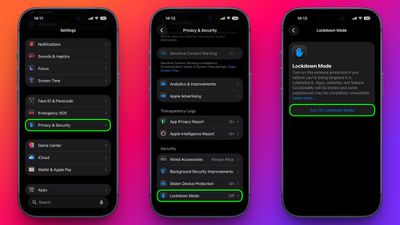
Lockdown Mode is turned off by default on ‌iPhone‌ and ‌iPad‌, but you can enable it by following these steps.

  1. Open the Settings app.
  2. Scroll down and tap Privacy & Security.
  3. Scroll to the bottom and tap Lockdown Mode.
  4. Tap Turn On Lockdown Mode.
  5. Review the information about what features are restricted, then tap Turn On & Restart.
settings

After the restart, Lockdown Mode will be active. You can confirm this by returning to Settings ➝ Privacy & Security ➝ Lockdown Mode, where a toggle will show that it's on.

How to Enable Lockdown Mode on Mac

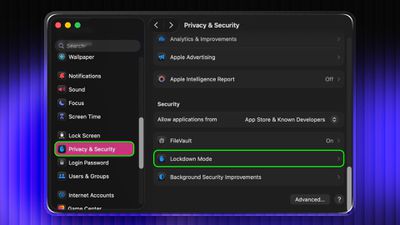
  1. Open System Settings.
  2. Click Privacy & Security in the sidebar.
  3. Under the "Security" section at the bottom, click Lockdown Mode.
  4. Click Turn On Lockdown Mode.
  5. Review the protections and click Turn On & Restart.
settings

Your Mac will restart and Lockdown Mode will be enabled when it boots up.

How to Turn Off Lockdown Mode

Whether you're on iPhone, iPad, or Mac, these are the steps to follow:

  1. In Settings on iPhone/iPad (or System Settings on Mac) go to Privacy & Security ➝ Lockdown Mode.
  2. Tap or click the Lockdown Mode toggle to turn it off.
  3. Confirm that you want to turn it off. Your device will restart to leave Lockdown Mode.

Configuring Allowed Websites and App Exceptions

While Lockdown Mode is active, some websites and certain app features may be blocked for security. Apple allows you to add exceptions in some areas.

For example, in Safari, if a site is blocked by Lockdown Mode, you may be offered an option to allow website exceptions. This lets specific sites load normally while Lockdown Mode remains enabled.

Some third-party apps may also appear in a list in Settings ➝ Privacy & Security ➝ Lockdown Mode ➝ Configure Web Browsing, and you can turn off Lockdown Mode for those apps individually. This lets an app continue to function normally if it was being restricted by Lockdown Mode's web content limitations.


Top Rated Comments

ignatius345 Avatar
6 days ago at 08:12 am

Its not a new feature, just a lame feature. If u dont want ppl stealing info then maybe dont put it in your phone. Common sense goes a long way. Too bad apple lacks this.
Better yet: when you get your iPhone, just leave it in the factory default state and don’t sign into anything on it or add any contacts or any other data whatsoever. Don’t text anyone and don’t make any calls. Common sense.
Score: 11 Votes (Like | Disagree)
DEMinSoCAL Avatar
6 days ago at 08:06 am

Its not a new feature, just a lame feature. If u dont want ppl stealing info then maybe dont put it in your phone. Common sense goes a long way. Too bad apple lacks this.
Is that common sense? Leave your doors and windows open when you leave your house? If you don't want ppl stealing your stuff, maybe don't put any stuff in your house! Is that common sense, too?
Score: 7 Votes (Like | Disagree)
Genelec8341 Avatar
6 days ago at 07:29 am
One of those features you hope you never have to use, but glad it's there if you do.
Maybe the only one.
Score: 7 Votes (Like | Disagree)
DEMinSoCAL Avatar
6 days ago at 08:09 am

Why aren't thee 'safety features' the default. And user has to enable them . rather than the opposite of enable, and then this lockdown mode. Security should be DENY first, with selected enable. Not full ALLOW with a tacked on DENY mode. weird. more ***** from apple i guess.
"DENY first" is a great strategy for firewalls...not so much for consumers who no nothing about the technicality of those features, let alone know whether they should be on or off. It would be a support nightmare to make those features the default on every iPhone.
Score: 4 Votes (Like | Disagree)
klm9210 Avatar
6 days ago at 07:24 am
I mean, I am kind of a big deal so this is super-duper helpful
Score: 4 Votes (Like | Disagree)
It’s always something Avatar
6 days ago at 07:35 am

One of those features you hope you never have to use, but glad it's there if you do.
Maybe the only one.
Advanced Data Protection is probably another
Score: 4 Votes (Like | Disagree)

Popular Stories

Aston Martin CarPlay Ultra Screen

Apple's CarPlay Ultra to Expand to These Vehicle Brands Later This Year

Sunday February 1, 2026 10:08 am PST by
Last year, Apple launched CarPlay Ultra, the long-awaited next-generation version of its CarPlay software system for vehicles. Nearly nine months later, CarPlay Ultra is still limited to Aston Martin's latest luxury vehicles, but that should change fairly soon. In May 2025, Apple said many other vehicle brands planned to offer CarPlay Ultra, including Hyundai, Kia, and Genesis. In his Powe...
iOS 26

iOS 26.3 and iOS 26.4 Will Add These New Features to Your iPhone

Tuesday February 3, 2026 7:47 am PST by
We are still waiting for the iOS 26.3 Release Candidate to come out, so the first iOS 26.4 beta is likely still at least a week or two away. Following beta testing, iOS 26.4 will likely be released to the general public in March or April. Below, we have recapped known or rumored iOS 26.3 and iOS 26.4 features so far. iOS 26.3 iPhone to Android Transfer Tool iOS 26.3 makes it easier...
Apple Logo Black

Apple's Next Launch is 'Imminent'

Sunday February 1, 2026 12:31 pm PST by
The calendar has turned to February, and a new report indicates that Apple's next product launch is "imminent," in the form of new MacBook Pro models. "All signs point to an imminent launch of next-generation MacBook Pros that retain the current form factor but deliver faster chips," Bloomberg's Mark Gurman said on Sunday. "I'm told the new models — code-named J714 and J716 — are slated...
Apple MacBook Pro M4 hero

New MacBook Pros Reportedly Launching Alongside macOS 26.3

Sunday February 1, 2026 5:42 am PST by
Apple is planning to launch new MacBook Pro models with M5 Pro and M5 Max chips alongside macOS 26.3, according to Bloomberg's Mark Gurman. "Apple's faster MacBook Pros are planned for the macOS 26.3 release cycle," wrote Gurman, in his Power On newsletter today. "I'm told the new models — code-named J714 and J716 — are slated for the macOS 26.3 software cycle, which runs from...
iOS 26 Home Feature

Apple Gives Final Warning to Home App Users

Tuesday February 3, 2026 8:55 am PST by
In 2022, Apple introduced a new Apple Home architecture that is "more reliable and efficient," and the deadline to upgrade and avoid issues is fast approaching. In an email this week, Apple gave customers a final reminder to upgrade their Home app by February 10, 2026. Apple says users who do not upgrade may experience issues with accessories and automations, or lose access to their smart...